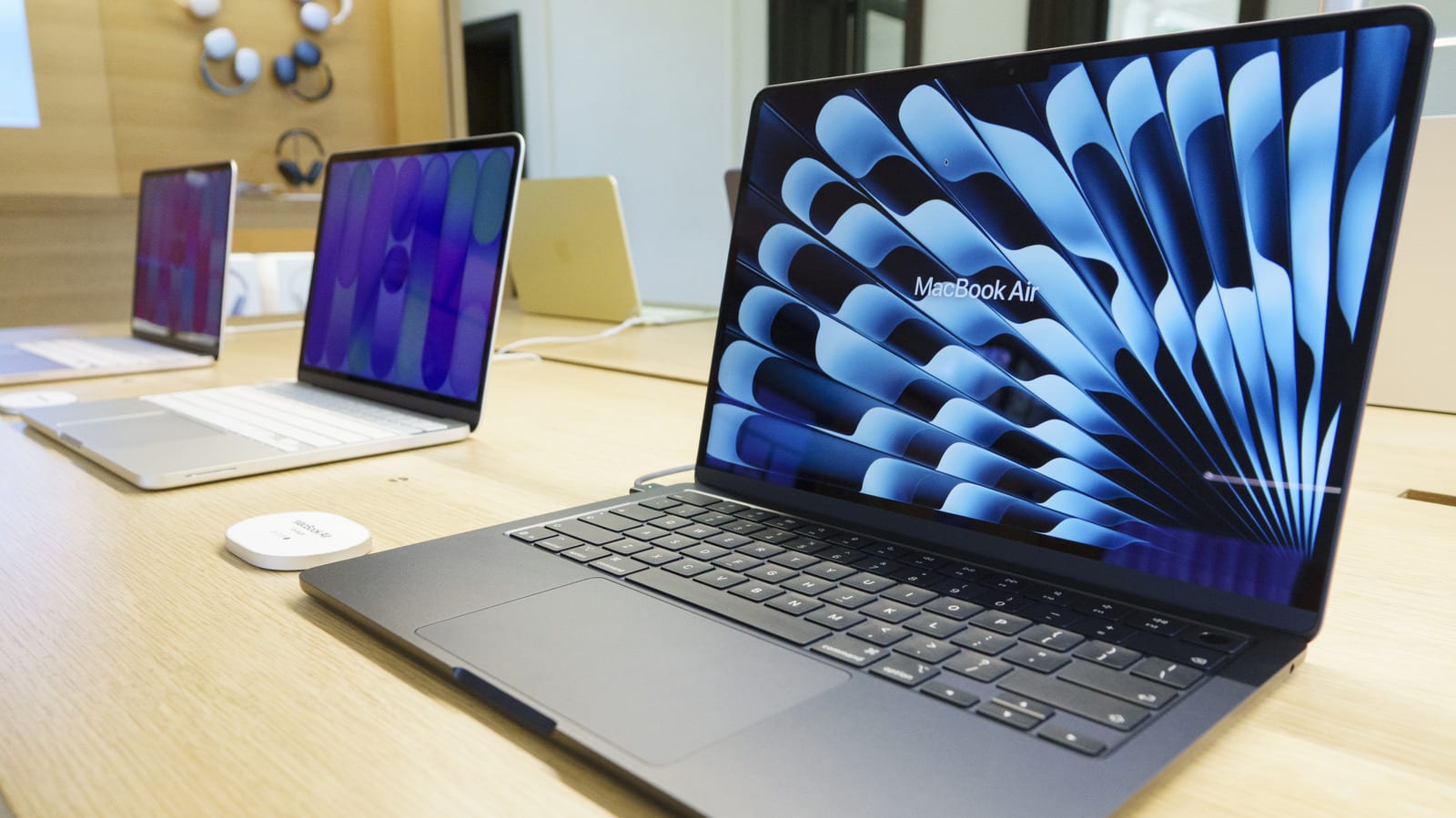
Engadget has published a short checklist of Mac privacy settings worth checking. The standout detail is that the Mac firewall, a tool that blocks connections you did not ask for, is off by default. Turning it on takes a few clicks. The rest of the list covers passwords, location, Wi-Fi, ads and data sharing with Apple.
Lock screen and app access
Start with the basics. Use a strong passcode, not a pet's name or a birthday, and set up Touch ID. Under System Settings > Lock Screen, you can require a password to wake the laptop from sleep or the screensaver. You can also choose how long the Mac must be asleep before it asks.
Location Services lets apps and websites learn where you are. Maps apps need it, but many others may not. In Privacy & Security, you can turn it off entirely or approve apps one by one. Camera and microphone access are managed in the same area.
Wi-Fi and the firewall
Under Settings > Wi-Fi, make sure the Mac does not automatically join unsecured networks. Doing so could expose you to malware or data interception. One option sends a notification asking permission before joining any network, so you stay in control.
The firewall stops unwanted connections from other networks or the internet, which matters most on public Wi-Fi. To switch it on, go to System Settings > Network > Firewall.
Ads and analytics
Apple collects data it uses to show ads in places like the App Store and Apple News. Under Privacy & Security > Apple Advertising, you can view what Apple knows about you. Apple says it does not track you across websites or third-party apps. You can also turn off Personalized Ads. That limits how relevant ads are, but not how many you see.
Analytics & Improvements sends Apple anonymous information, such as crashes, freezes, general usage and which apps you use. With permission, crash data may go to third-party developers. Apple says it deletes analytics data after a month. Consumer Reports found experts split on the risk, saying it often depends on the companies involved.
What to do
- Check Lock Screen settings and set up Touch ID.
- Review which apps can use your location, camera and microphone.
- Stop the Mac from auto-joining unsecured Wi-Fi.
- Turn on the firewall in System Settings > Network.
- Switch off Personalized Ads and analytics sharing if you prefer.
Engadget notes the list is not exhaustive and that needs vary by person. A periodic check-in is the point, especially after buying a new MacBook.
The takeawayOpen System Settings today and turn on the Mac firewall, which is off by default, then stop auto-joining unsecured Wi-Fi.