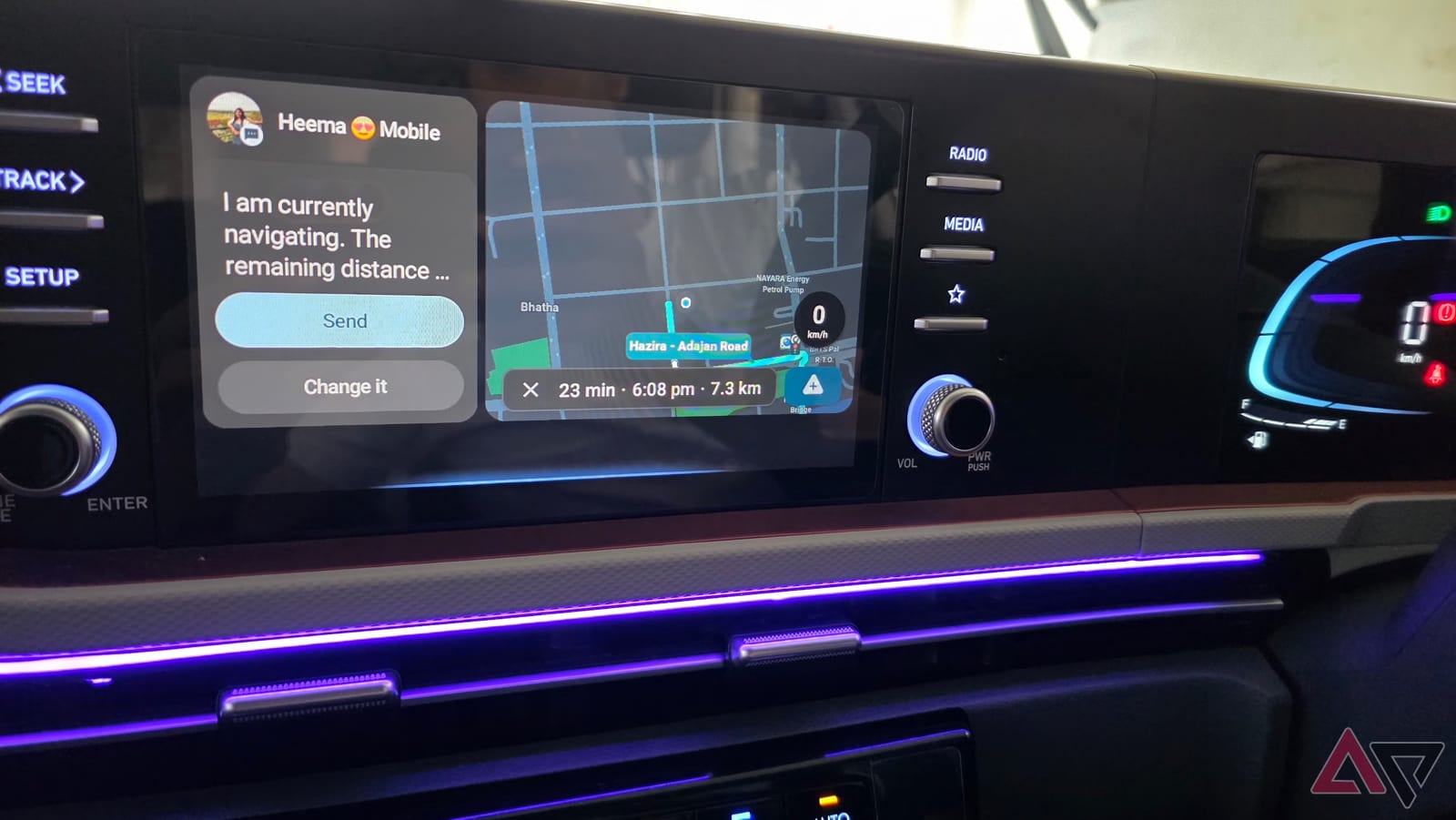
Before you switch on a battery saver or cap your data, check four settings that Android Auto depends on. Android Police writer Parth Shah says turning off the wrong ones can cause dropped connections, late notifications and poor navigation. The four are location, mobile data, automatic startup and battery exceptions for your driving apps.
Keep location precise
Google Maps and Waze need to know exactly where you are. Without accurate positioning, you could get wrong location updates, late turn-by-turn instructions or confusing directions at tricky intersections. The advice is to keep Location Services on and give both apps precise location. Google's Location Accuracy feature also helps. It uses Wi-Fi networks, cell towers and phone sensors to improve positioning, especially when the GPS signal is weak.
Keep mobile data on
Offline maps are a good backup, and downloading them before a long trip is smart. But that is not a reason to turn data off. With data on, Maps and Waze can show live traffic, suggest other routes and update your arrival time. Offline, Maps still guides you through downloaded areas, but you lose those extras.
Data also matters beyond navigation. Downloaded music plays without internet, but streaming services and many Gemini requests need a connection. Gemini, Google's assistant, got a major upgrade in Android Auto. It can play a song, navigate to a place, create a note, summarize a meeting document, check your tasks and handle commands that span several apps.
Let it start by itself
Android Auto can launch on its own when your phone connects to a compatible car. That means no unlocking the phone or hunting through menus. A separate option lets it start while the phone is locked. Automatic music playback is a different setting, and the writer keeps it off so songs do not blast the moment the car starts.
Protect driving apps from battery limits
Battery tools that put apps to sleep can interfere with navigation, music and alerts, especially when an app is not open on screen. The fix is to exempt the apps you rely on in the car. The writer names Waze, Google Maps and the music player Poweramp as examples.
Where to find them
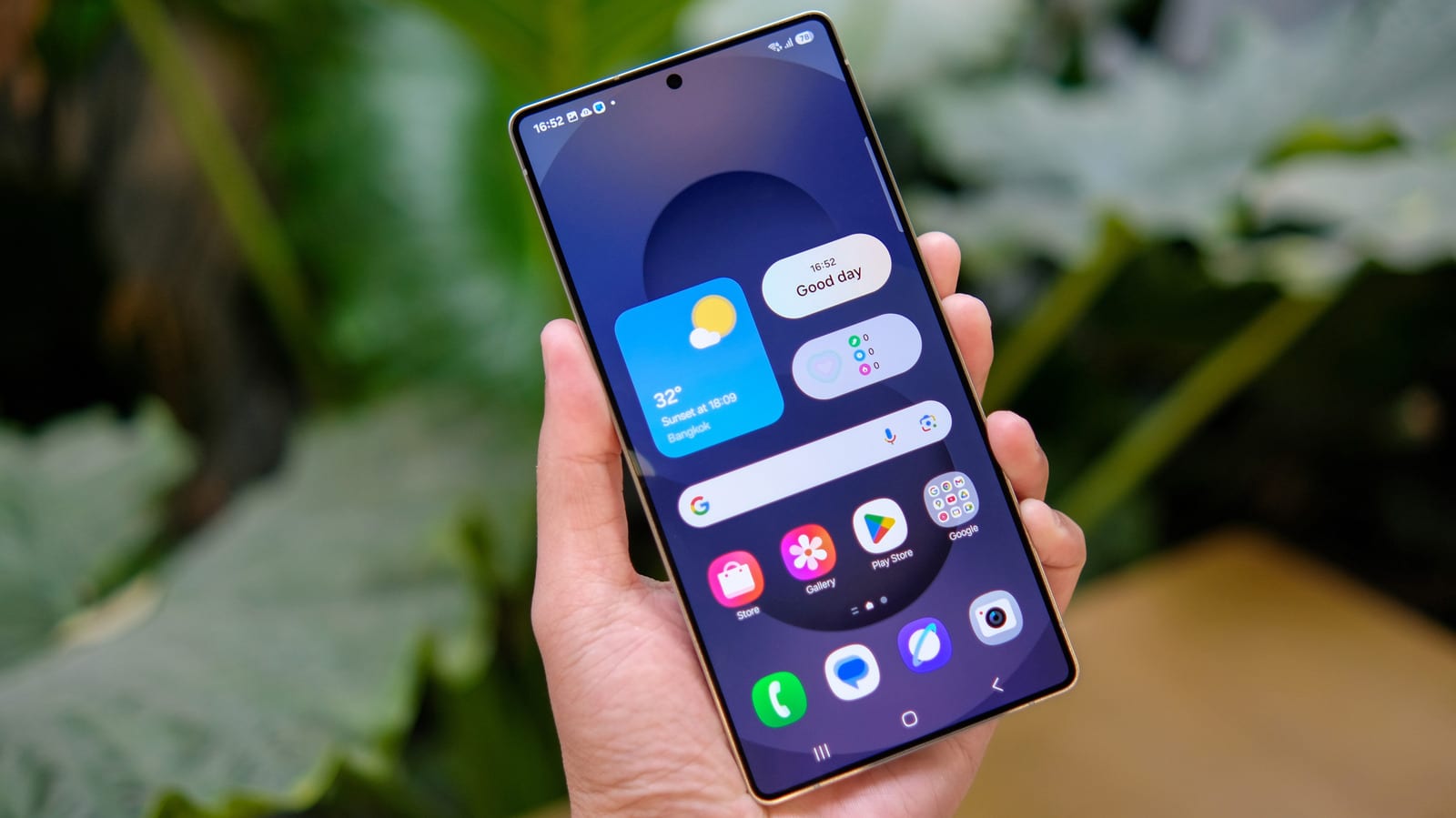
These menu paths come from a Samsung Galaxy S25 Ultra. Names may differ on other phones.
- Location: Settings > Location > App permissions, then allow precise location for Maps and Waze.
- Auto start: Android Auto settings > Start Android Auto automatically.
- Battery: Settings > Battery > Background usage limits, then add apps to Never auto sleeping apps.
The takeawayBefore using a battery saver or data limit, make sure location, mobile data, auto start and battery exceptions are set for your driving apps.