Android Auto's most annoying habits may not be permanent. A How-To Geek writer who uses it almost every day found phone settings that help with a dropping wireless connection, noisy message alerts, clumsy voice commands and missing apps. Android Auto is the Google system that puts maps, music and messages from your phone on the car screen.
A steadier wireless connection
The writer's connection kept cutting out while Google Maps was guiding her through traffic, which also stopped her music. On a Galaxy Z Fold 6, she opened Settings, then Connections, then Wi-Fi, then Intelligent Wi-Fi. She switched off "Switch to mobile data" and "Switch to better Wi-Fi networks." That stopped the phone from jumping between connections on its own.
She also made sure Power saving was off before driving and removed battery restrictions for Android Auto. A cable still stays in the car for emergencies.
Quieter messages
In Android Auto settings, under message notifications, turning off "Play message chime" removes the extra sound that cuts into music. Three other options are worth a look:
- Show group conversation controls whether group chats appear.
- Show first line of message controls message previews.
- Show message notifications can be turned off for fewer interruptions overall.
Another route is to keep alerts on and mute one especially noisy conversation. Gemini, Google's assistant, can also read messages aloud when it is safe, so there is no need to check the phone.
One-tap Gemini shortcuts
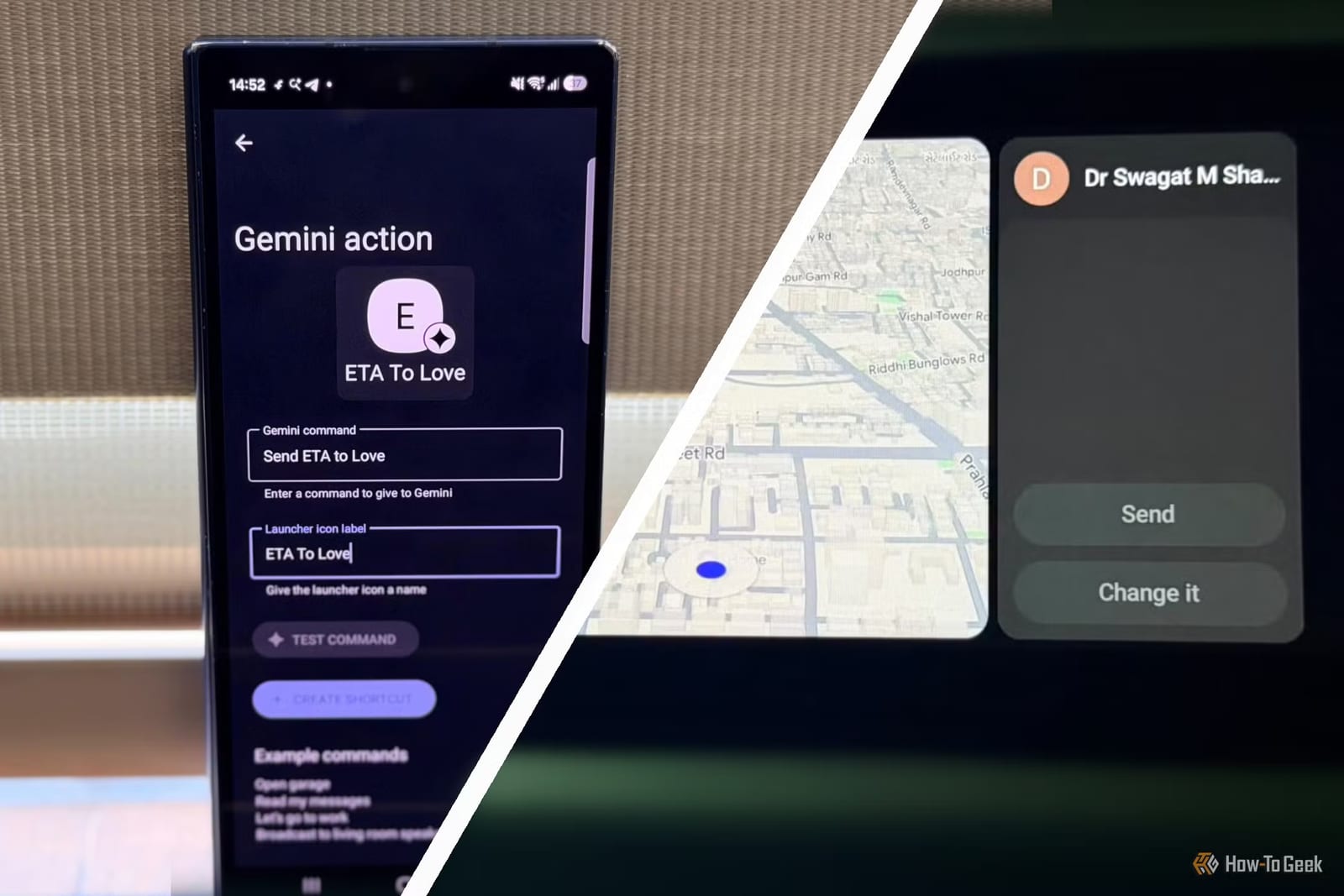
When Gemini misunderstands spoken commands, saved shortcuts can help. The path on the Fold 6 was Settings, Connected devices, Android Auto, Customize launcher, then Add a shortcut to the launcher. If "A Gemini action" appears, you type a command and give it a name. Examples include sending an arrival time to a spouse in Messages or starting a grocery list in Google Keep. Each then runs with one tap on the car screen.
The Test Command option lets you check a shortcut while parked or connected to Android Auto before relying on it on the road.
Finding missing apps
Not every phone app shows up in the car. Only apps that support Android Auto appear. Customize launcher shows which ones are available and lets you move favorites to the top.
If a regular app is missing, open it on the phone first, then check the launcher again. Samsung's battery settings can also put unused apps to sleep, so that is worth checking.
What to keep in mind
The steps come from one Samsung phone, so menu names on other phones may differ. The writer also says not every problem has a perfect fix and some still need Google to solve them.
The takeawayBefore blaming the car, check your phone's Wi-Fi switching, battery limits and Android Auto notification settings.