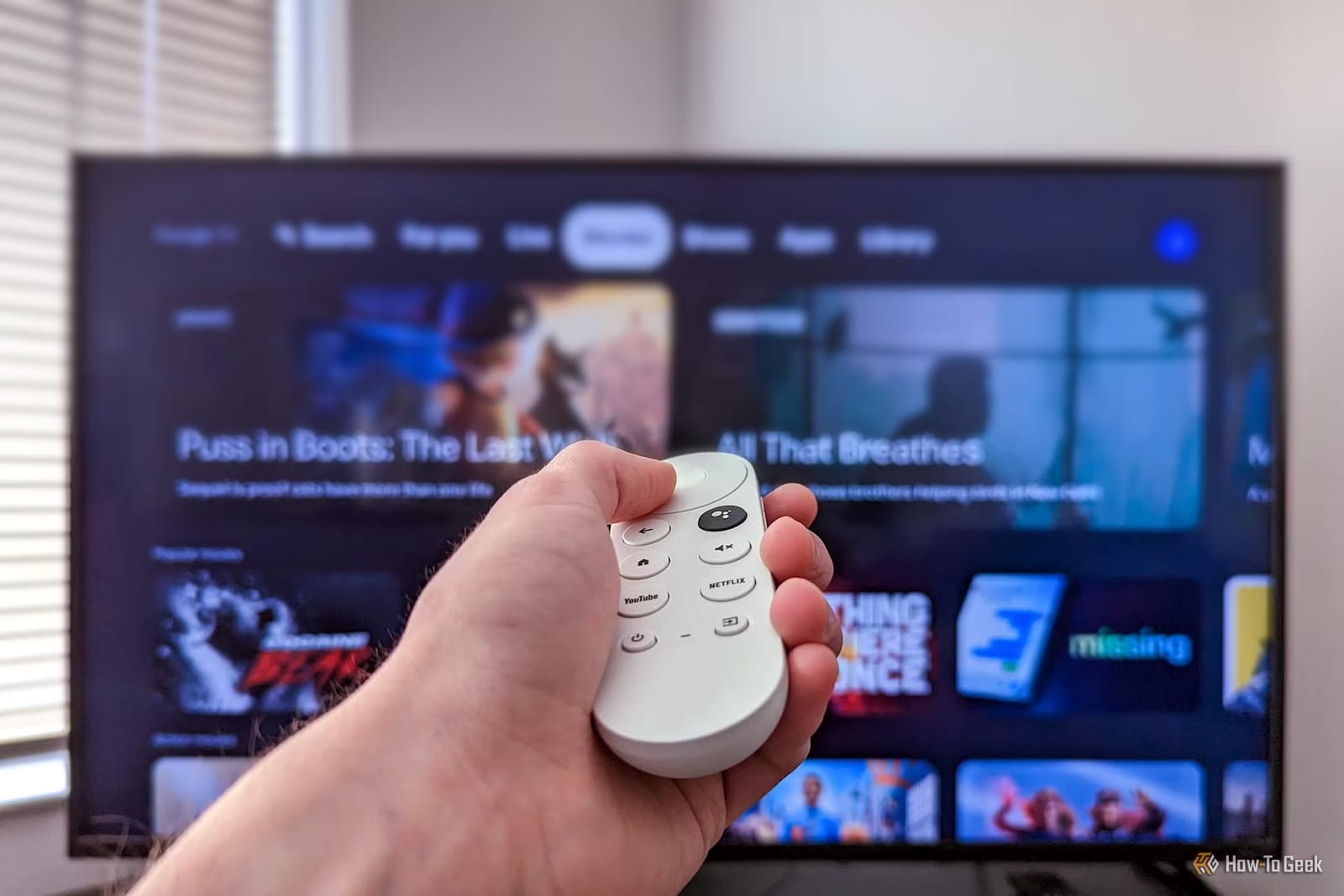
A slow Google TV may not need replacing. How-To Geek writer Vishwamoorthy Ramakrishnan says four hidden settings in a developer menu helped restore the responsiveness of his Sony BRAVIA TV after about a year of use. The tweaks are free and take minutes.
Why TVs slow down
Many smart TVs come with relatively limited memory (RAM) and internal storage, so their menus can get sluggish over time. The article also notes that TV chips focus on decoding video rather than drawing smooth animations. When you scroll fast or jump back to the home screen, the processor can drop frames and the screen feels laggy.
How to unlock the menu
Go to Settings, then Systems, then About. Scroll to the Android TV OS build entry and press Select on your remote seven times. A notification confirms you are now a developer. The new Developer options menu then appears in settings.
The four settings
- Animation speed: set Window, Transition and Animator duration scale from 1x to 0.5x. Menus and app switching feel quicker.
- USB debugging: lets a phone app such as atvTools install apps, browse storage and take screenshots without a cable.
- Background process limit: change Standard to At most 2 processes to free memory for the app in use.
- Force allow apps on external: lets some apps move to a USB drive and frees internal space.
What to know before you try
Some TVs and streaming devices may use a separate wireless debugging or network debugging toggle instead of USB debugging. Not every app can move to external storage, and some app data still stays on the TV's internal storage. The author does not say how much faster each setting makes a given TV, so results will vary.
What to do
The author suggests starting with the 0.5x animation scales. That change is simple and affects how the whole TV feels. People who often move files or install apps from outside the store may also find the phone connection useful. Change one setting at a time and note what it does, so you can switch it back if something feels wrong.
The takeawayIf your Google TV feels slow, try halving the three animation scales to 0.5x in Developer options before thinking about a new TV.