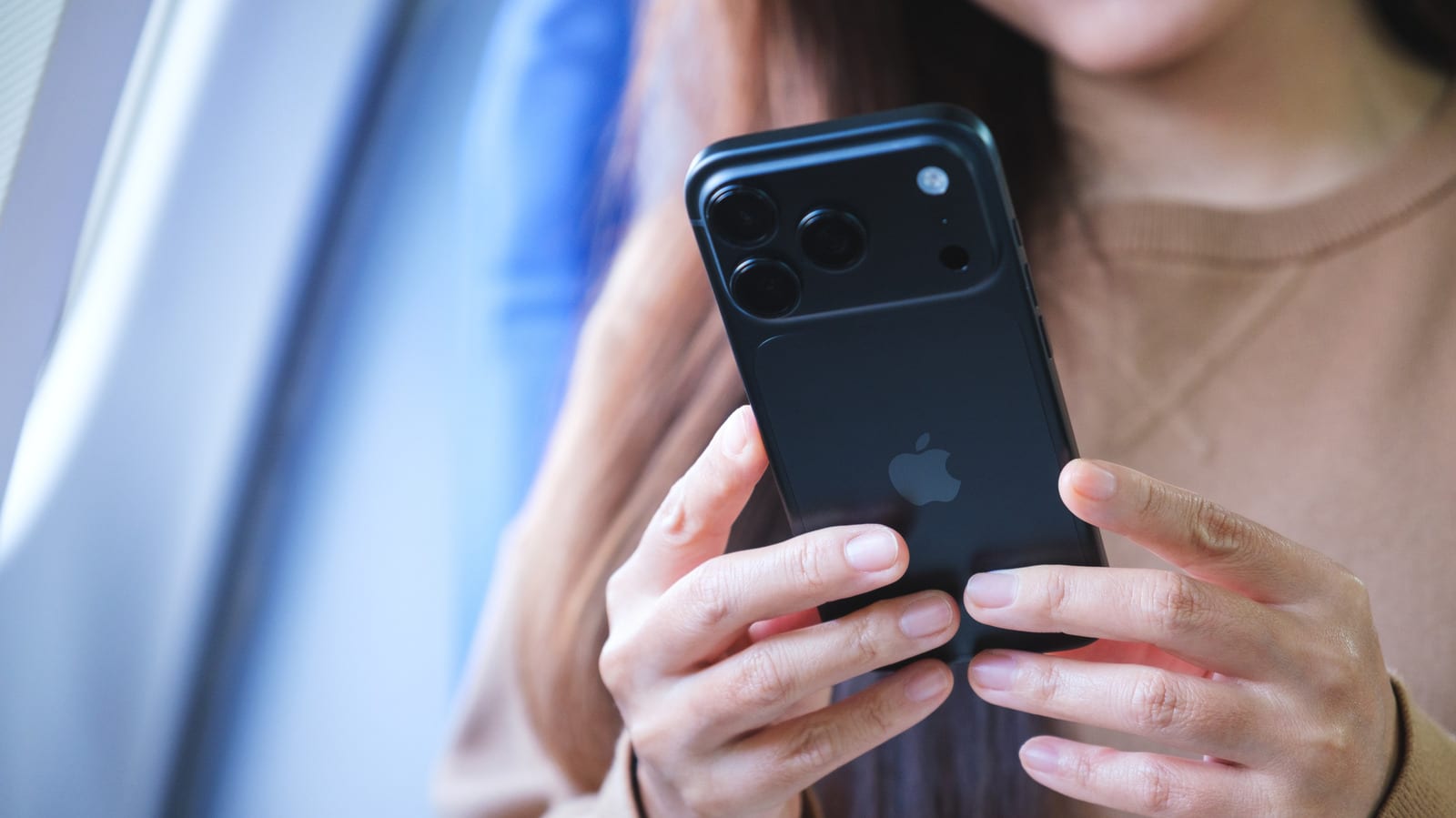
Apple's iOS 27 update saves your Siri conversations forever and syncs them to every Apple device signed into your account. That is handy if you want to continue a chat on a Mac. It is less welcome if you would rather Siri forget. CNET picked five defaults worth changing right after you update, and each takes a few taps.
Keep Siri from saving everything
The new Siri AI works like ChatGPT or Claude. It has its own app where you can revisit old conversations, and those chats sync through iCloud. To set a limit, go to Settings > Siri > Keep Conversations and choose 30 Days or 1 Year. Anything older is permanently deleted.
In the same menu, tap Opens To and pick A New Conversation. The Siri app will then start with a blank chat instead of showing recent ones. Siri AI needs an iPhone 15 Pro or 15 Pro Max, an iPhone Air, or an iPhone 16 or later.
Make the screen easier to read
Liquid Glass is the see-through look Apple introduced with iOS 26. In iOS 27 you get more control over it. Go to Settings > Appearance > Liquid Glass and drag the slider right for more tint and opacity, which makes buttons and text stand out. Drag it left for more transparency.
If the most opaque setting is still not enough, open Settings > Accessibility > Display & Text Size and turn on Reduce Transparency. This makes see-through backgrounds more solid across iOS. It overrides the regular Liquid Glass controls.
Quiet the AI writing button and Siri wake-ups
A new Write with Siri button sits above the keyboard in apps such as Messages, Mail and Notes. It can draft, proofread or rewrite text. To remove it, use Screen Time. The steps are below.
- Open Settings > Screen Time > Content & Privacy Restrictions and turn the restriction on.
- Tap Siri > Writing Assistance > Don't Allow.
- To bring the tools back, return to the same menu and choose Allow.
This turns off the writing tools across the whole iPhone, not just the button. Only do it if you never use them.
Siri can also wake up when you say only "Siri," without "Hey." That is not new to iOS 27, but it can trigger by accident when someone says the name in a meeting or a video. Go to Settings > Siri > Talk to Siri and choose "Hey Siri." You can still use your voice, but the extra word makes false starts less likely.
Turn off automatic subtitles
iOS 27 now shows subtitles by default in Apple's video player, including in Photos and Safari. By default, iOS can turn them on when a video is in another language, when your iPhone is muted or when you skip back. They can cover too much of the picture.
To switch them off for one video, tap the video, tap More Controls, select Subtitles and choose Off. To change the default, go to Settings > Accessibility > Subtitles & Captioning. Under Automatic Subtitles, turn off When Languages Don't Match. The same menu has switches for Show When Muted and Show on Skip Back, so you can disable each trigger on its own.
Some apps and websites use their own video players. In those, look for a separate CC or subtitles button.
The takeawayAfter updating to iOS 27, spend a few minutes in Settings to cap how long Siri keeps your chats and to tame Liquid Glass, subtitles and Siri wake-ups.