Gmail has several built-in tools that can cut the time spent on email, and many people never touch them. An Android Police writer who has used Gmail for years says she has barely scratched the surface. Five features stand out: filters, Add to Tasks, Schedule Send, Templates and Gemini.
Sort mail without lifting a finger
Filters are rules that sort incoming messages automatically. A filter can label emails from a particular sender or flag messages with a specific subject line. Labeled mail stays easy to find without competing with messages that need attention right away.
To make one on a computer, click the search options icon beside the search bar. Enter a sender's address, subject or keywords, then click Create filter. Choose what Gmail should do with matching messages and save the rule. You can also open an email, select the More menu and choose Filter messages like these.
Turn emails into to-dos
Some emails are really tasks in disguise, such as a request to review a document or a reminder to book an appointment. The Add to Tasks option turns one into an item in Google Tasks. The task stays linked to the original email, so the message remains available as a reference.
On Android, open the email, tap the three-dot menu in the upper-right corner and select Add to Tasks. On a computer, use the toolbar or the More menu. You can add a due date later in Google Tasks.
Send later, and reuse what you write
Schedule Send holds a message until a time you choose. On the mobile app, tap the three-dot menu after writing the email and select Schedule send. On a computer, the option sits in the dropdown next to the Send button. Scheduled messages wait in the Scheduled folder. If plans change, you can cancel the send and edit the draft.
Templates save text you use often. To turn them on, open Settings, select See all settings, go to the Advanced tab, enable Templates and save. Then write the text, open the More options menu in the compose window and save it. The writer still checks each message before sending, mainly to swap out names and dates.
Ask Gemini instead of searching
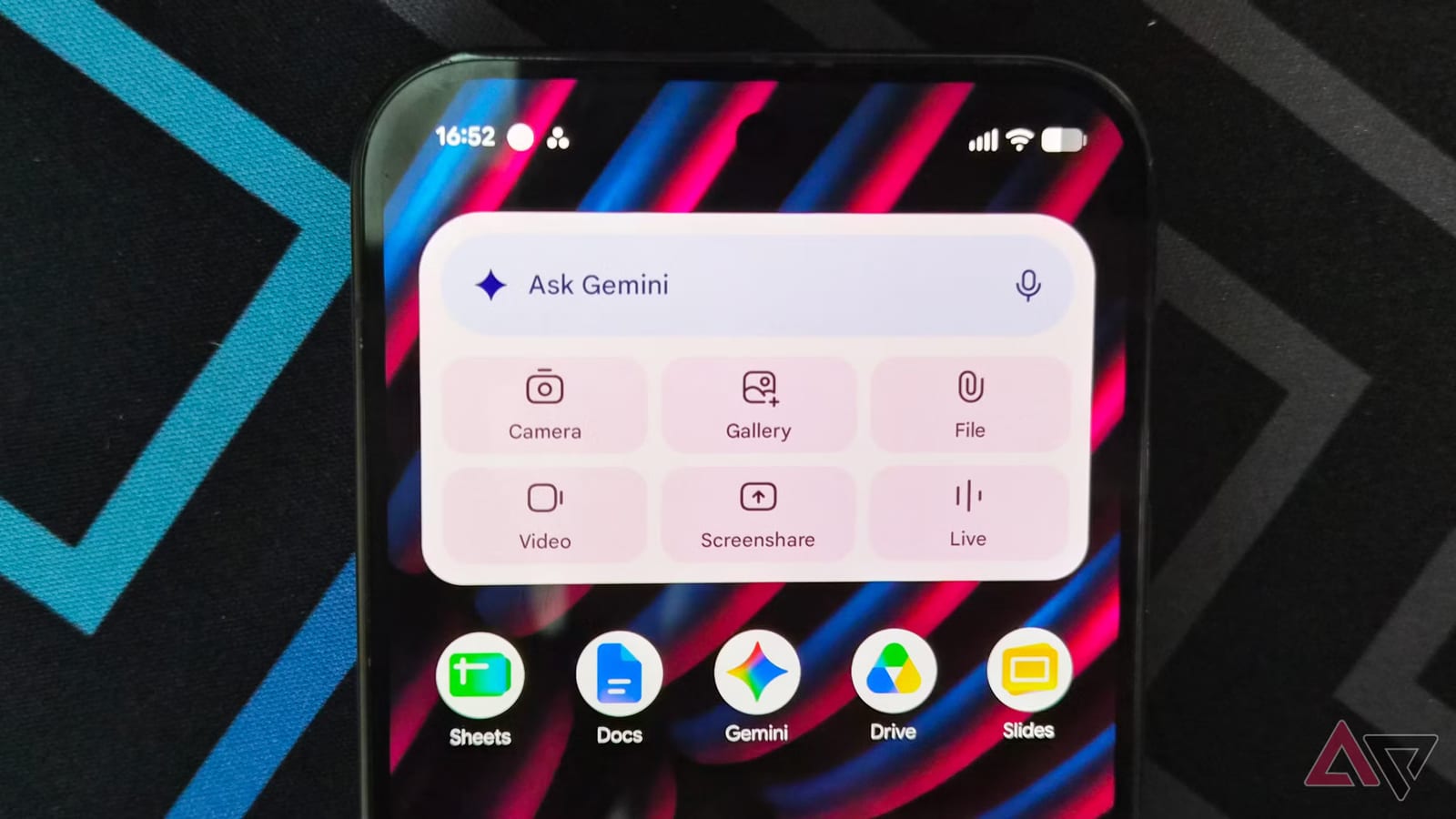
Gemini is Google's AI assistant, and it works inside the Gmail app. Tap the Gemini icon and type a question, such as "When is my next flight?" or "Catch me up on the emails about our upcoming trip." It can also summarize a long conversation or pull details scattered across several messages.
What to do
- Start with one filter for a sender whose mail you rarely need right away.
- Use Add to Tasks on the next email that asks you to follow up.
- Try Schedule Send on a late-night draft.
- Turn on Templates in the Advanced tab for replies you repeat.
The takeawayPick one of these Gmail tools, such as filters or Schedule Send, and try it today, since each takes only about a minute to set up.