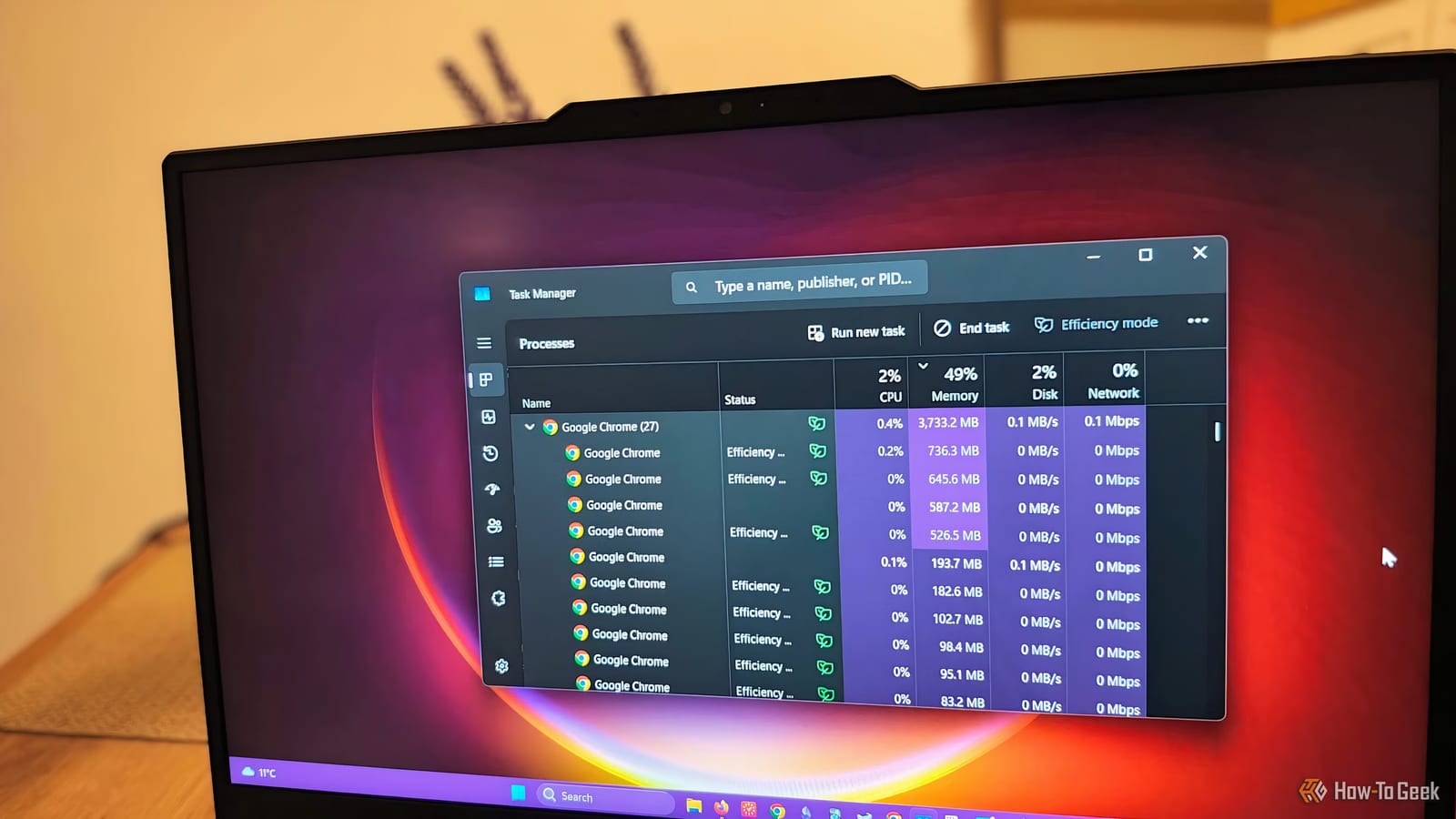
Google Chrome is known for using a lot of memory, the short-term workspace a computer uses to run programs. The good news is that a few settings can bring that down. Each takes a minute or less to change, and they may help most on an older or busy computer.
Why Chrome uses so much
Chrome gives each tab, extension and browser task its own separate process. Google has acknowledged since Chrome launched in 2008 that this approach demands a lot of resources. It is meant to be better for privacy and security. The article's author reports Chrome sitting at 2GB of memory or more, even during light use.
Settings worth changing
- Memory Saver: puts tabs you have not used in a while to sleep and reloads them when needed.
- Preload pages: switch from Extended to Standard, or turn it off.
- On device AI: switch it off at chrome://settings/ai if you do not use it.
- Continue running background apps: turn it off so Chrome stops lingering after you close it.
- Restore pages on startup: avoid it if you often close Chrome with dozens of tabs open.
What each one does
Google said Memory Saver can save up to 40% and 10GB of memory when it first announced the feature. That kind of gain only comes with very heavy tabs. Video sites and complex web apps use far more than a simple spreadsheet. The Balanced or Medium option is the suggested choice. Maximum can put tabs to sleep too fast, which may reload videos or lose your place on a page.
If you work in web apps with unsaved changes, the Performance section has an Always keep these sites open option. Adding those sites stops Memory Saver from refreshing them.
Preload pages guesses where you will go next based on past activity. It can save a few seconds but costs extra memory. The article says the trade-off is not worth it.
Earlier this year, Chrome drew criticism for quietly installing a 4GB file on PCs. That file holds on-device AI features, including Scam Detection, AI Mode in the search bar and an AI sidebar. The 4GB is disk space, not memory. Still, these features use some memory, so turning them off helps a little.
Background apps let tools such as Google Workspace send notifications after Chrome is closed. If you still see several Chrome entries in Task Manager after closing the browser, this setting is the likely cause. Those processes can use as much as 30% of the computer's memory.
Startup tabs and finding the culprit
Restoring a huge set of tabs at launch can spike memory use. Bookmarks, shortcuts or a custom set of startup pages are lighter options. If the problem seems bigger than these settings, Chrome can also show which tab, process or extension is using too much memory. That can point to a single extension to remove.
Is it worth staying with Chrome
The article notes that Chrome is not built to be light on resources. Still, its tight link to Google Workspace and newer features such as PDF annotation and split views keep it essential for many people. For those users, adjusting settings is the easier path than switching.
The takeawayTurn on Memory Saver at Balanced or Medium, switch off background apps, and check Preload pages, on-device AI and startup tabs.