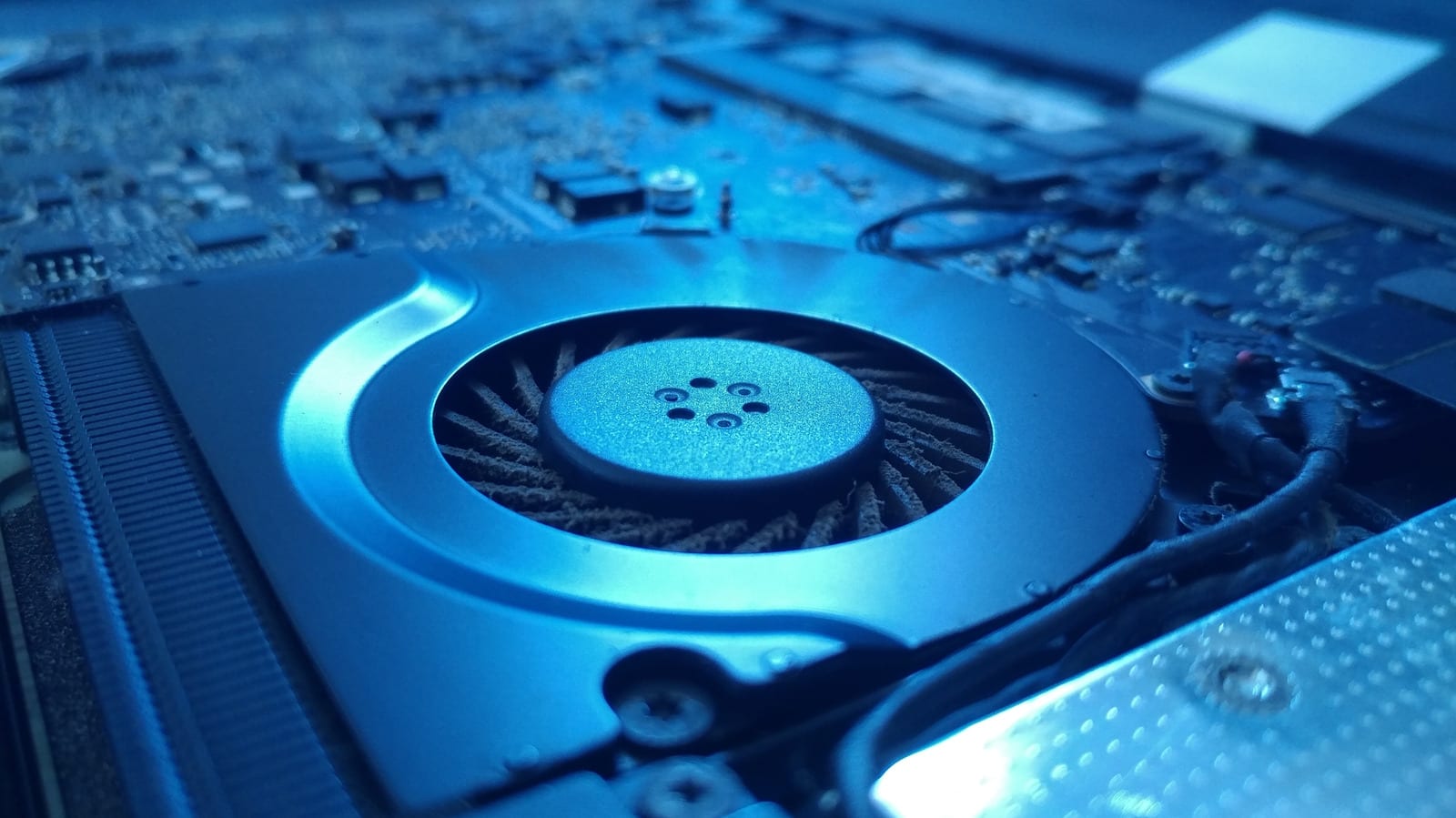
If your laptop suddenly sounds like a jet engine and then goes quiet again, the cause is usually one of two things: dust blocking the vents, or programs working hard in the background. Both are fairly easy to check, and neither needs a trip to a repair shop to start.
Why it happens
Laptops have gotten better at managing performance and cooling. Even so, powerful parts packed into a small body still need strong fans to stay cool. Some fan noise is normal. Loud bursts that keep coming back can mean the laptop is working harder than it needs to.
Start with airflow
First, make sure the laptop sits on a hard, flat surface such as a desk or table. A bed or sofa can block the vents. If the fan stays loud, dust around the fans or vents may be the problem. You can usually clean it without opening the machine.
- Turn the laptop off, unplug anything attached to it, and let it cool.
- Find the air vents. Depending on the model, they may be on the bottom or the sides.
- Use short bursts of compressed air, following the instructions on the can.
- Wipe away loose debris with a clean microfiber cloth.
If that does not help, the next step is opening the laptop to reach the fans. A brush that is safe for electronics (called ESD-safe) can help along with compressed air. This is a bit advanced, and the method depends on the laptop. If it feels like too much, a technician can do it. Check your warranty first, because opening the laptop yourself may affect your coverage.
Check what is running
If the fans get loud at random times, the processor may be busy with something you cannot see. On Windows, press Ctrl+Shift+Esc to open Task Manager and choose Processes. Click the CPU column to put the biggest users of processing power at the top. Then open Startup apps and turn off programs you do not want starting on their own.
On a Mac, open Activity Monitor. If you cannot find it, press Command+Spacebar to open Spotlight Search. Go to CPU and click the % CPU column to sort the list. To close a process, select it, click Stop, then choose Quit.
What to leave alone
Do not quit processes at random. Doing so can cause serious crashes. On Windows, if you are not using them, you can generally end programs like Calculator, Gaming Services, News and Interests, Phone Link, CTF Loader or Groove Music.
On a Mac, you can quit lingering processes from apps you have already closed. You can also quit disk image processes that stop a disk from ejecting. If you do not need a fully searchable library of your files, you can turn off Spotlight indexing.
The takeawayPut the laptop on a hard surface, clear the vents with short bursts of compressed air, then check which programs are using the most processing power.