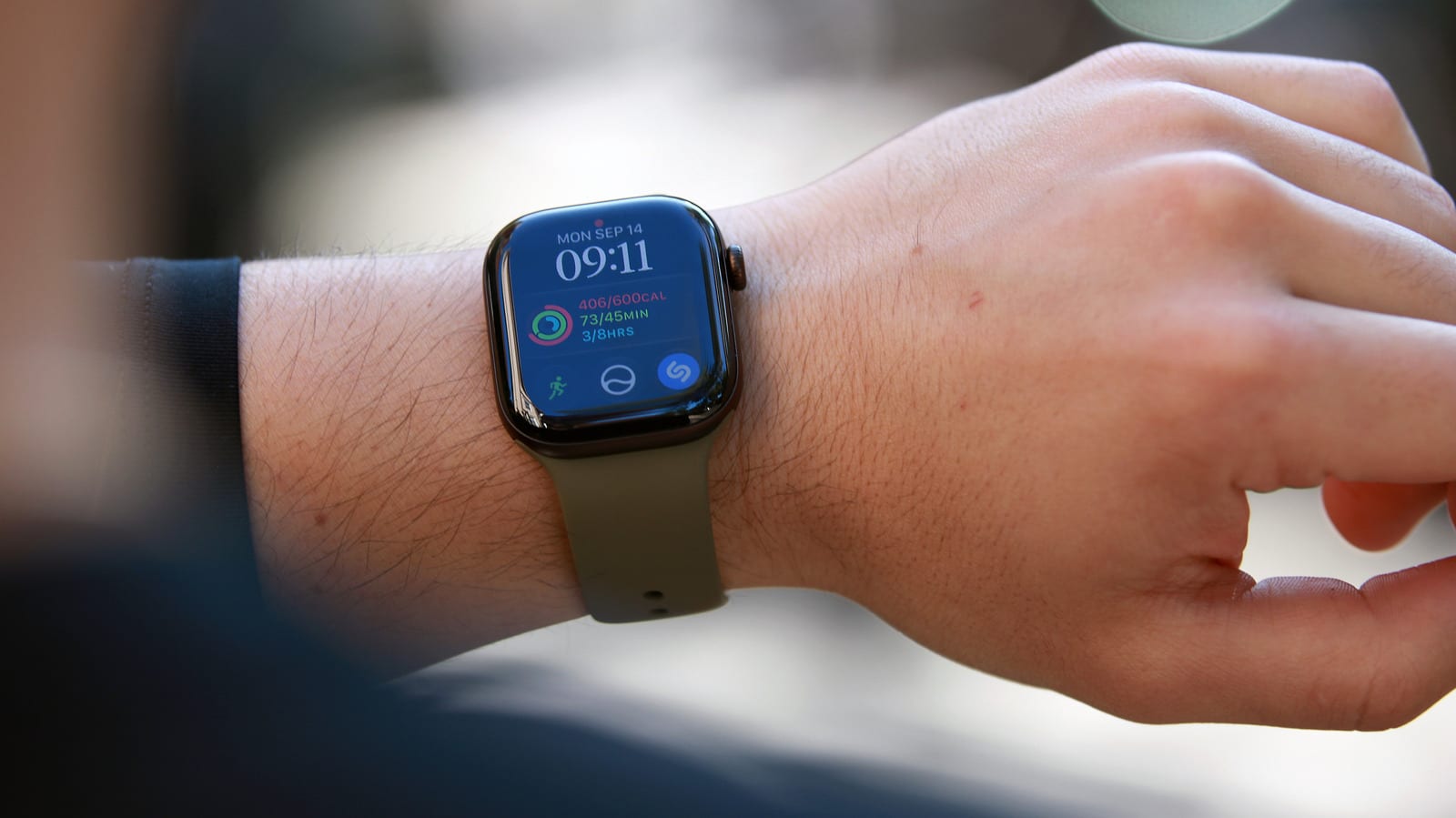
That small red dot at the top of your Apple Watch screen is not a warning or a fault. It means you have notifications you have not read or dismissed yet. It takes a few taps to clear, and a few settings can stop it from coming back.
Why the dot shows up
Apple sends alerts to your iPhone when it is unlocked. If the iPhone is locked and your watch is the unlocked device, the alerts go to the watch instead. You will not always catch each one as it appears, so the dot stays on as a reminder of what you missed.
How to clear it
Press and hold the watch face to open Notification Center. Swipe down or turn the Digital Crown to scroll through the list. From there you can handle alerts one at a time or all at once.
- Tap a notification to read it.
- Swipe left on a notification and tap the X to delete it.
- Scroll to the top and tap Clear All to remove every unread notification.
Hide the dot for good
If the dot makes you anxious, or you simply do not want to be disturbed, you can turn it off. Open the Apple Watch app on your iPhone, tap Notifications and switch off Notifications Indicator. Your alerts still arrive. Only the dot goes away.
Quiet the apps behind the pings
You can also deal with the noisiest apps directly. Swipe left on one of their notifications and tap the ellipsis icon, the three dots. You can mute that app for an hour or turn its notifications off completely.
The same menu has a Turn off Time Sensitive option. It is meant for apps you want to deliver notifications immediately, even if Focus mode is on. Focus mode normally delays most notifications.
For wider control, go to the Apple Watch app on your iPhone and tap Notifications. Most apps simply mirror your iPhone, so their settings match on both devices. Under Mirror iPhone Alerts, you can toggle off any listed app to stop its alerts on your watch.
Some apps show a Custom option instead. On that app's settings page, you can choose Notifications Off or Send to Notification Center. The second choice drops alerts into Notification Center without the watch alerting you, so they wait quietly until you look.
The takeawayPress and hold the watch face, tap Clear All, and switch off Notifications Indicator in the iPhone Watch app if you never want the dot.