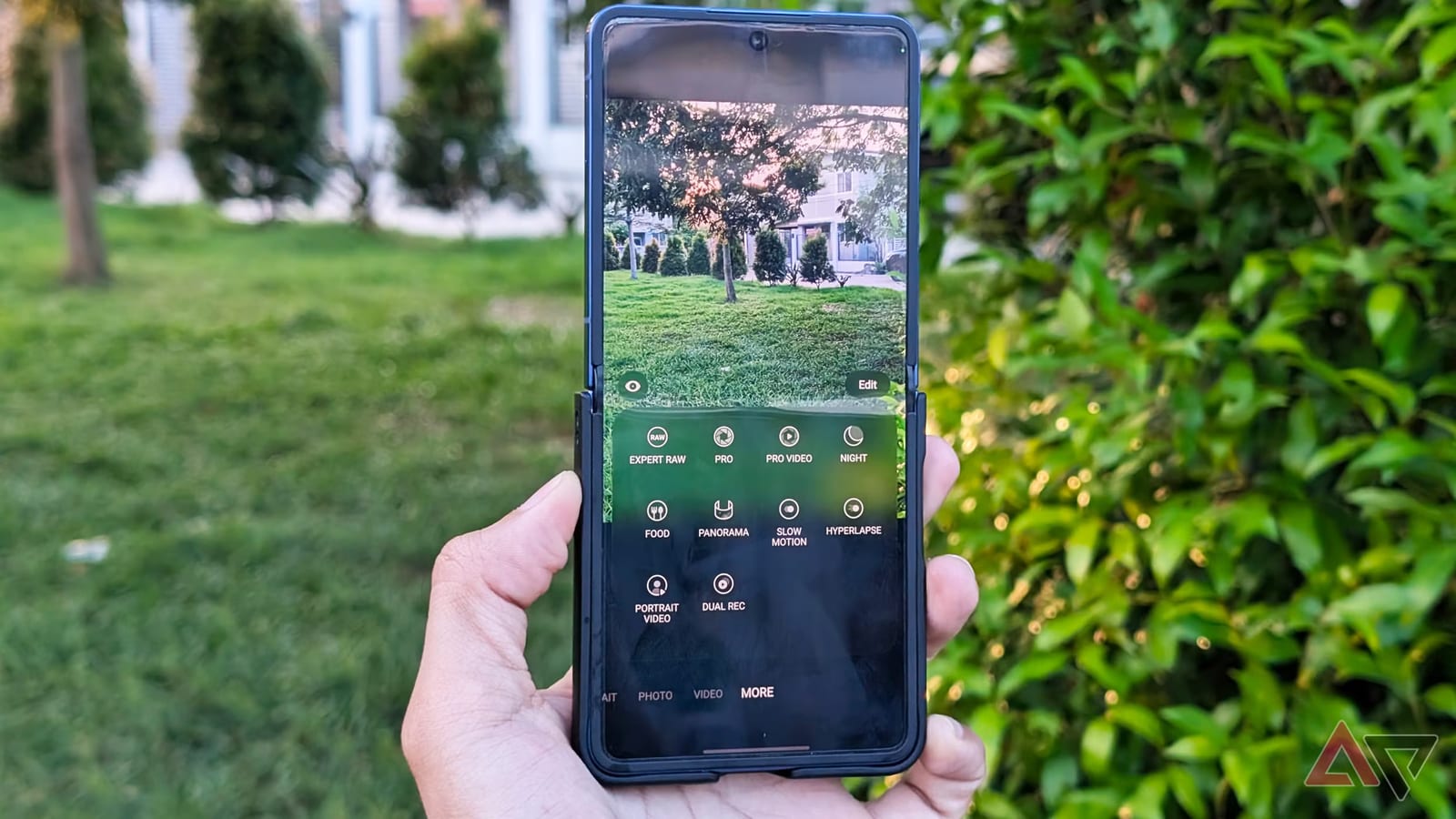
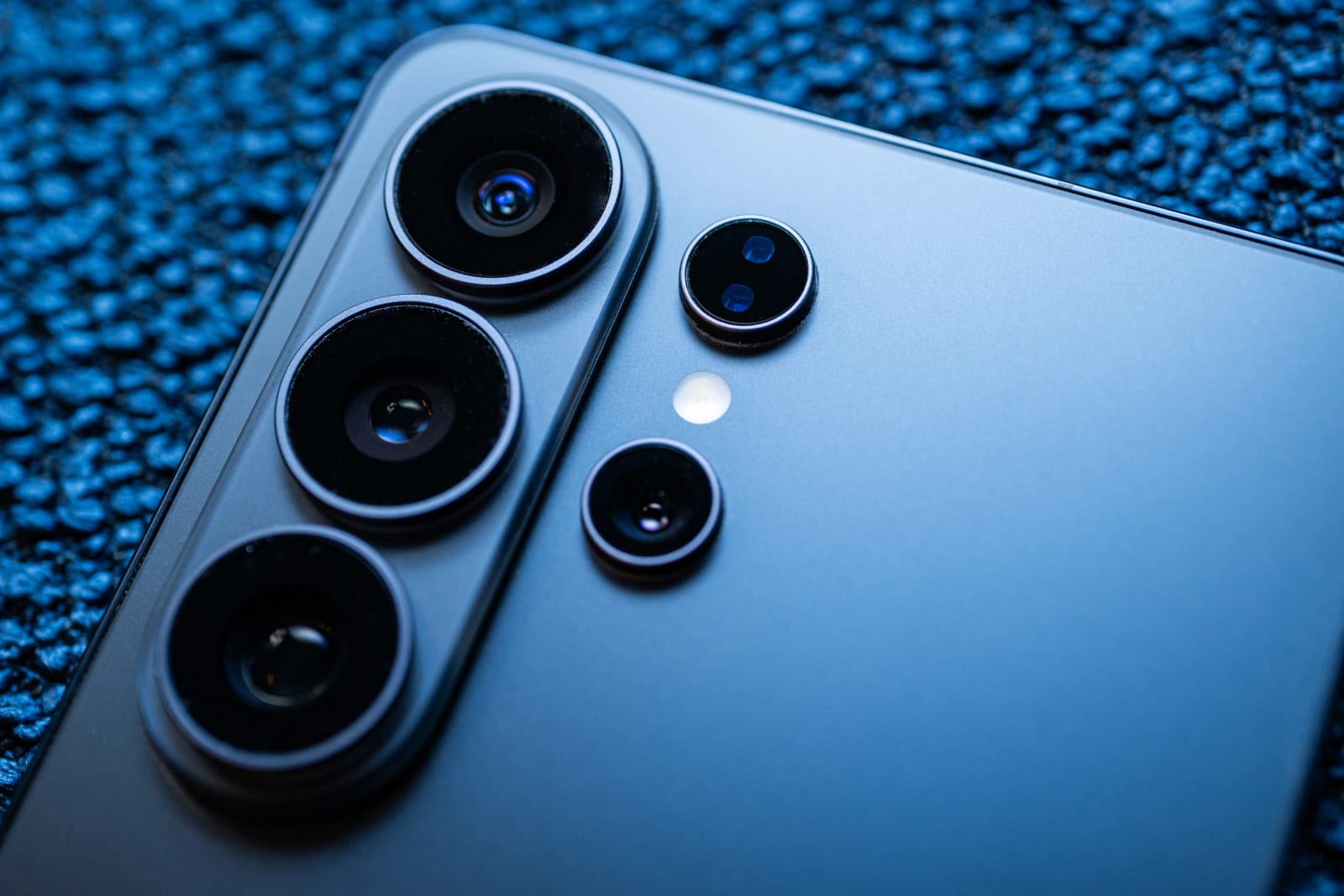
Galaxy owners can get clearer, more natural photos by changing a few camera settings. Android Police writer Jade Bryan Jardinico tested them on a Galaxy Z Flip 7 after capturing more than 1,000 photos. None of the tweaks require Pro mode or RAW, a file type meant for heavy editing.
What you need first
Most of the tweaks live in Camera Assistant. It is not built into the phone. Samsung offers it as an optional add-on in its Good Lock app, and it can also be downloaded from the Galaxy Store. The reviewer thinks Samsung should pre-install it. Features vary by phone. The Z Flip 7, for example, lacks Intelligent Optimization, which is found on flagships like the Galaxy S26 Ultra.
The settings that help
- Prioritize focus over speed: the camera locks focus before it fires, which cuts blurry shots.
- Photo softening: Medium or High levels tone down Samsung's heavy sharpening.
- 2x zoom: a better look than the wide 1x lens, which the reviewer finds stretched.
- Filters: Samsung's built-in filters now work on photos you already took.
Prioritize focus over speed adds a slight delay. For action shots, it can be switched off. Tapping the subject before pressing the shutter also helps.
Photo softening is meant for phones that over-sharpen, especially at in-between zoom levels like 1.2x, 2.4x or 2.8x. The reviewer suggests starting with Medium. It works best on close-up portraits and animals, where it keeps skin texture and hair natural. It also suits landscapes with trees or grass. The setting is under Camera Settings, then Camera Assistant, then Photo softening.
Zoom and filters
The reviewer prefers 2x for portraits, street and architecture shots, because it makes the subject stand out. On the Flip, which has no dedicated telephoto lens, 2x is a sweet spot. For more detail, stick with 3x or 5x. Those use the lens's native view, while in-between levels crop or digitally scale the image. That can add graininess in low light.
Samsung has not added Looks-style presets like Pixel 11's Camera Looks or iPhone's Photographic Styles. It sticks with filters. Preloaded ones include Crystal, Blanc, Pop, Retro film and Sunbeam, and the Galaxy Store has more. The reviewer likes Frosty, which adds a bluish tint to balance warm scenes.
What to do
Owners of a Galaxy phone can install Camera Assistant, turn on Medium photo softening and try 2x zoom for portraits. Check which options your model offers, since the list differs by phone.
The takeawayInstall Samsung's free Camera Assistant, try Medium photo softening and focus priority, and use 2x zoom for portraits.