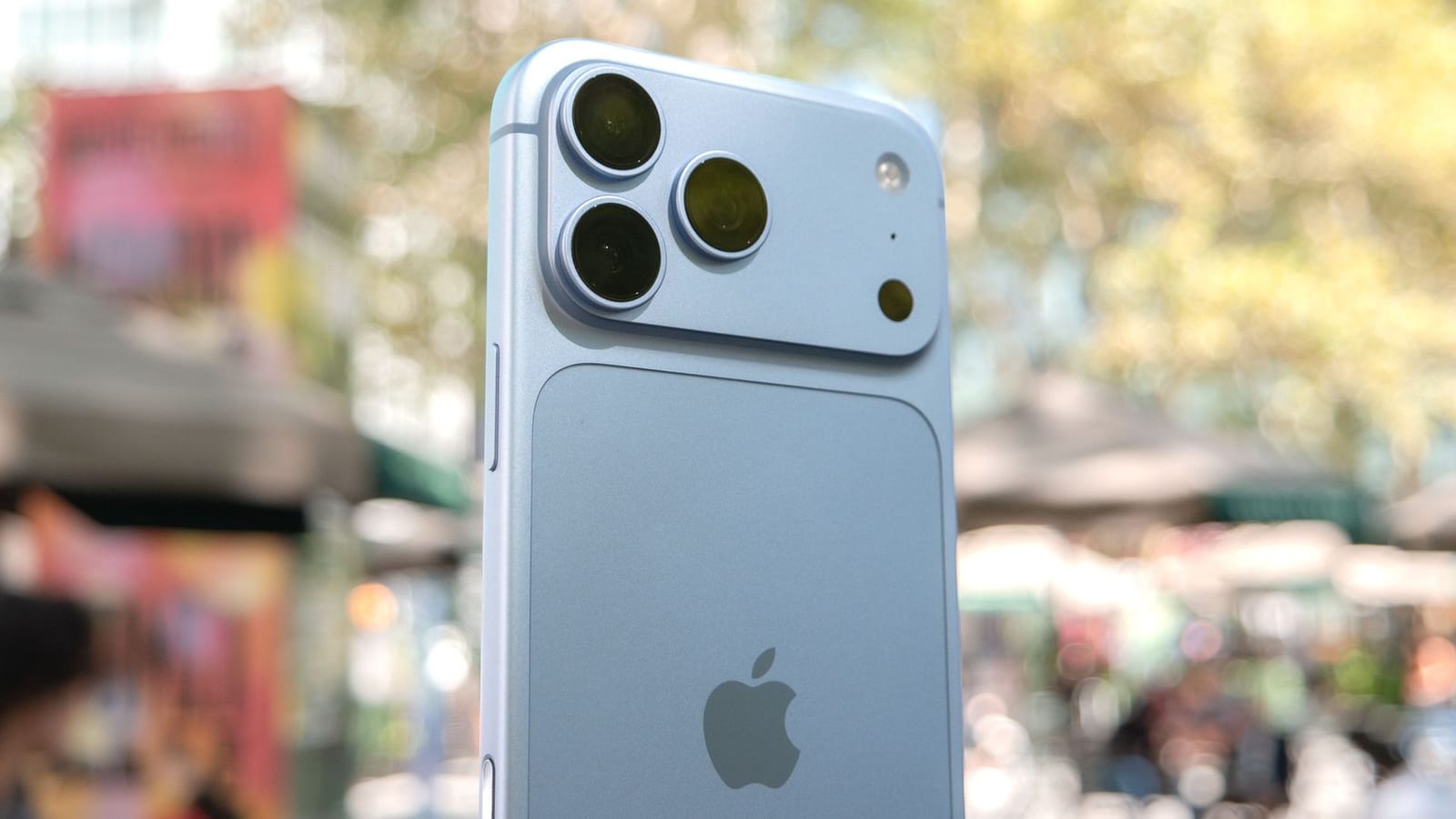
Putting your hand in front of the camera can make fall leaves look richer in an iPhone photo. A post on X, dated October 31, 2026, claimed the iPhone can't handle colorful scenes without a hand in the frame. Tom's Guide tested it and got the same result. Reds and yellows popped more, and even the greens looked livelier.
What the test showed
The photos were taken on an iPhone 18 Pro Max and an iPhone 17 Pro Max. Without a hand in view, the shots looked washed out, with a dull gray sheen. With a hand in view, helped by a white sleeve, the colors warmed up. The change was biggest with a blackberry bush. The reviewer said you would not guess the photos were taken seconds apart.
A screen recording on the iPhone 17 Pro Max shows it live. When the hand enters the frame, the preview turns warmer and the colors get stronger.
Why it happens
Most iPhones use automatic white balance. That is a setting that tries to correct for the color of the light in a scene so whites look white. It leaves the result up to the phone's software. On older iPhones, there is no choice in the matter.
PetaPixel speculates that the camera mistakes warm fall light for an unwanted color tint. It then cools the image and dulls the natural colors. A white or very light object in the frame gives the camera a cue to warm the whole photo, including the leaves behind it.
Who it affects
Only the iPhone 18 Pro and 18 Pro Max let users adjust white balance. Other cameras, including non-Apple phones, more often offer this control.
The hand trick has a limit. The reviewer says it works with lighter skin tones. No one tested darker skin, but the effect would likely be different. In that case, a white object could be used instead.
What to do
- On an iPhone 18 Pro or Pro Max, tap the camera menu button at the bottom right.
- Tap white balance, then pick one of the five presets.
- On other iPhones, hold something white or very light in the frame to warm the shot.
- Try a few versions of the same scene and compare.
The material does not say what the five presets are called or how each one looks. Results will also vary by scene.
The takeawayIf fall photos look gray on an iPhone, put something white in the frame, or on an iPhone 18 Pro, choose a white balance preset in the camera menu.