Android phones have a built-in magnifier that works on nearly anything on the screen, including places where pinch-to-zoom does nothing. It is called Magnification, and it sits in the Accessibility settings. ZDNET's Jack Wallen says he found it by accident and now uses it often to read news sites in the morning.
What it does
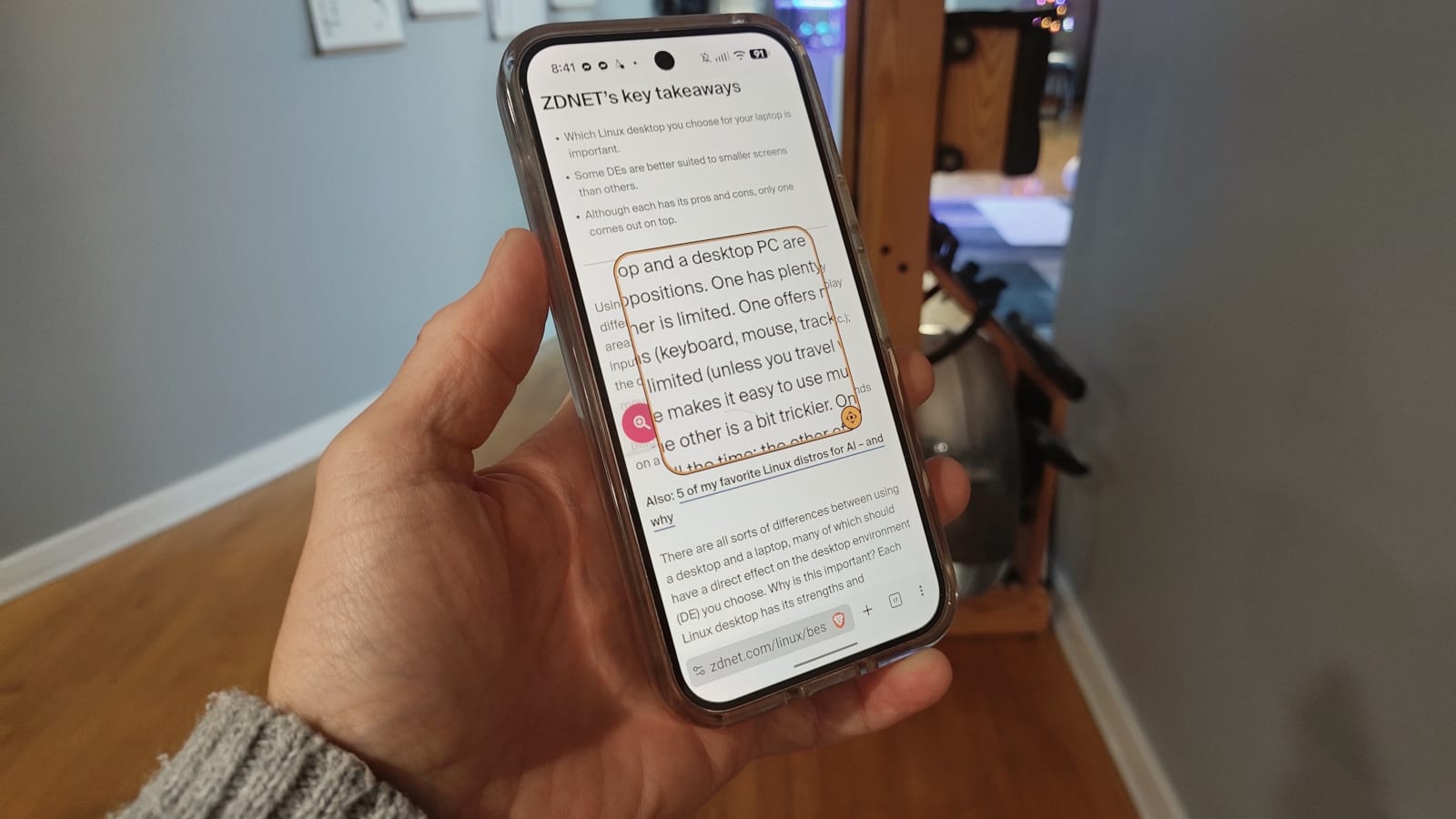
Once the feature is on, a small magnifier button appears on the screen. Tap it, and whatever is showing gets bigger. It does not matter which app is open or whether the content is text or a picture. The feature has been part of Android since version 15.
How to turn it on
The menu path depends on the phone and the Android version. Wallen gave two examples and one fallback.
- On a Pixel 9 Pro: Settings, then Accessibility, then Magnification.
- On a RedMagic 12 Pro: Settings, then Features, then Accessibility.
- If you cannot find it, open Settings and search for Magnification.
Switch the On/Off slider to On. The button appears. Tap it to enlarge the screen.
The catch with the button
The button stays on screen as long as the feature is enabled. You can drag it up, down, or to either side of the display. It fades a little, so it does not stand out much, but it does not go away.
Reading wide pages
After you tap the button, the enlarged view scrolls up and down but not sideways. That can cut off text on wider pages. There is a fix.
- Tap the gear icon at the bottom right to open the options.
- Tap the second "Magnifier size" icon from the right to get a movable magnifier.
- Move it where you need it, like a traditional magnifying glass.
- Tap the other size buttons to change its size, or drag the bottom slider to change the text size.
Who it helps
Anyone whose eyes tire on small print, or who hits a screen that will not respond to pinching. The article does not say which Android versions before 15 offer something similar, and menu names can differ by phone maker. Searching Settings for the word Magnification is the quickest way to check your own device.
The takeawayIf small text strains your eyes, search your Android Settings for Magnification and turn it on, then use the movable magnifier for wide pages.