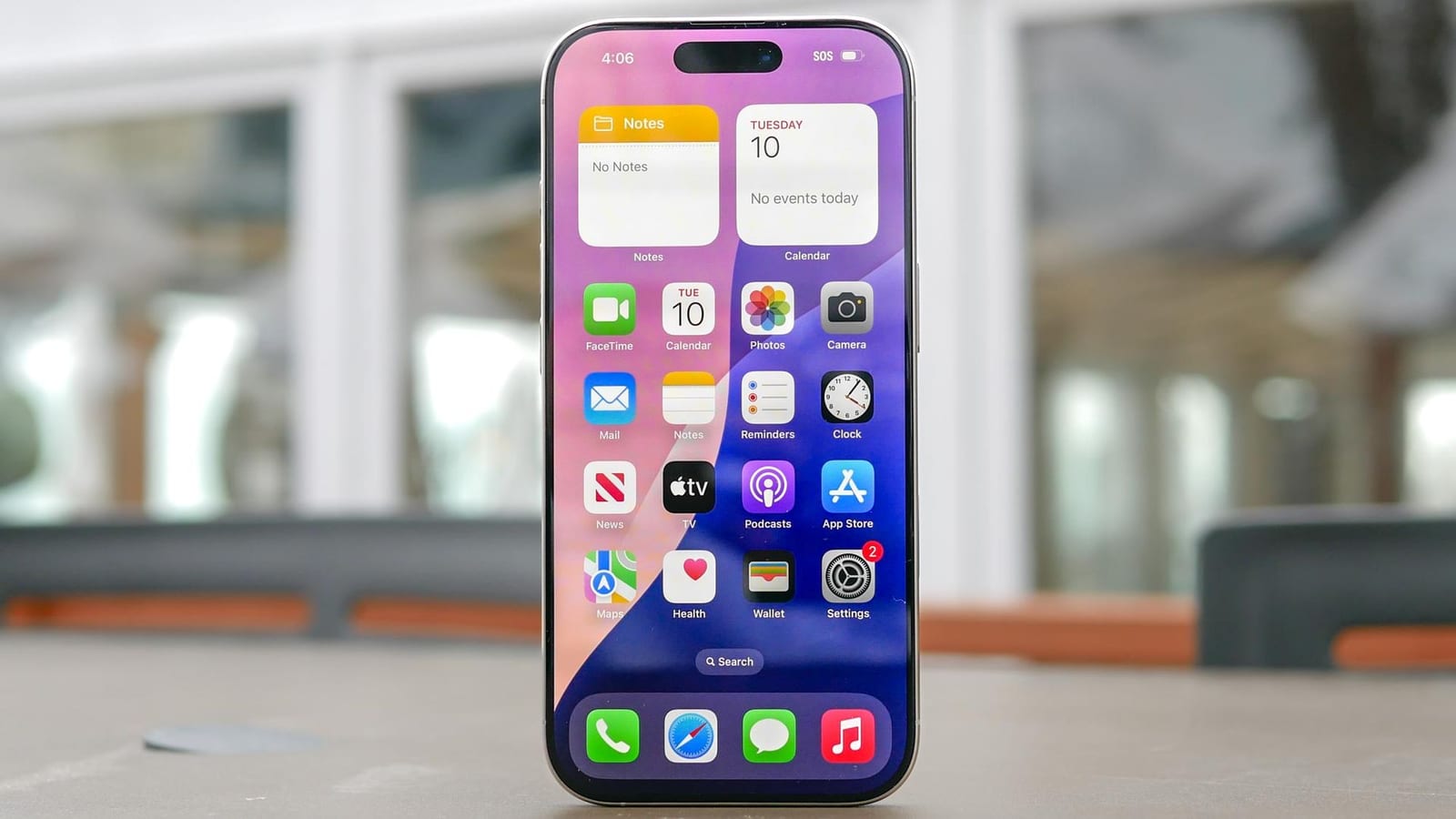
Act this weekWhat happenedTom's Guide listed five built-in iPhone settings that protect against theft, spoofed calls and scam attempts, and most are not on by default.
Who is affectedAnyone with an iPhone, especially people who use banking apps, get unknown calls, or carry their phone in public places.
What to do- 1Open Settings, tap Face ID & Passcode, and turn on Stolen Device Protection.
- 2Open Settings, Apps, Phone, and choose Silence Unknown Callers. Then turn on Filter Unknown Senders under Messages.
- 3Open Settings, tap your name, then Find My, then Find My iPhone, and turn on Find My network and Send Last Location.
- 4Open Settings, Notifications, Show Previews, and choose When Unlocked.
Your iPhone has protections against thieves and scam callers that may not be switched on. Tom's Guide published a guide to five built-in settings that help if your phone is stolen, if a scammer calls, or if someone peeks at your lock screen. Most are off until you turn them on.
Why it matters
A thief who watches you type your passcode used to be able to use that six-digit number to reset your Apple account password and lock you out for good. Stolen Device Protection is meant to close that gap. When you are away from familiar places like home or work, it asks for Face ID or Touch ID on sensitive actions. It also adds a one-hour wait before account changes.
The five settings
Beyond Stolen Device Protection, the guide covers four more. Silence Unknown Callers stops calls from numbers you do not know before the phone rings. Filter Unknown Senders does a similar job for text messages. Most financial fraud starts with a call from someone posing as a bank, courier or tax official.
Find My network lets nearby Apple devices locate your iPhone even when it is off or offline. Send Last Location sends one final ping before the battery dies. The fifth setting hides message previews until the phone is unlocked, so nearby people cannot read texts, calendar alerts or one-time bank codes.
The guide also describes Impersonation Risk Detection, which it says was introduced in iOS 27. It watches how you use the phone during high-stakes actions, without reading your messages, emails or photos. If it sees signs of pressure during a large transfer, it asks supported banking apps to require extra verification. The article does not say which banking apps support it.
Who can relax
These are iPhone settings, so people who use other phones are not affected. Anyone who has already turned these on is covered. The guide is most useful for people who bank on their phone, get unknown calls, or carry the phone in crowded public places.
What to do
The alert box above lists where to find each setting. The guide also suggests turning off Control Center, Wallet and USB Accessories under Allow Access When Locked in Face ID & Passcode. Set aside a few minutes and go through them one by one.
What to watch for
Stolen Device Protection only applies away from familiar places, so a delay on account changes is expected behavior. Check whether Impersonation Risk Detection appears in Privacy & Security on your phone. If it does not, the guide does not explain why. Keep treating urgent calls asking for money or passwords with suspicion.
The takeawaySpend a few minutes in iPhone Settings to turn on theft and scam protections that most people never switch on.