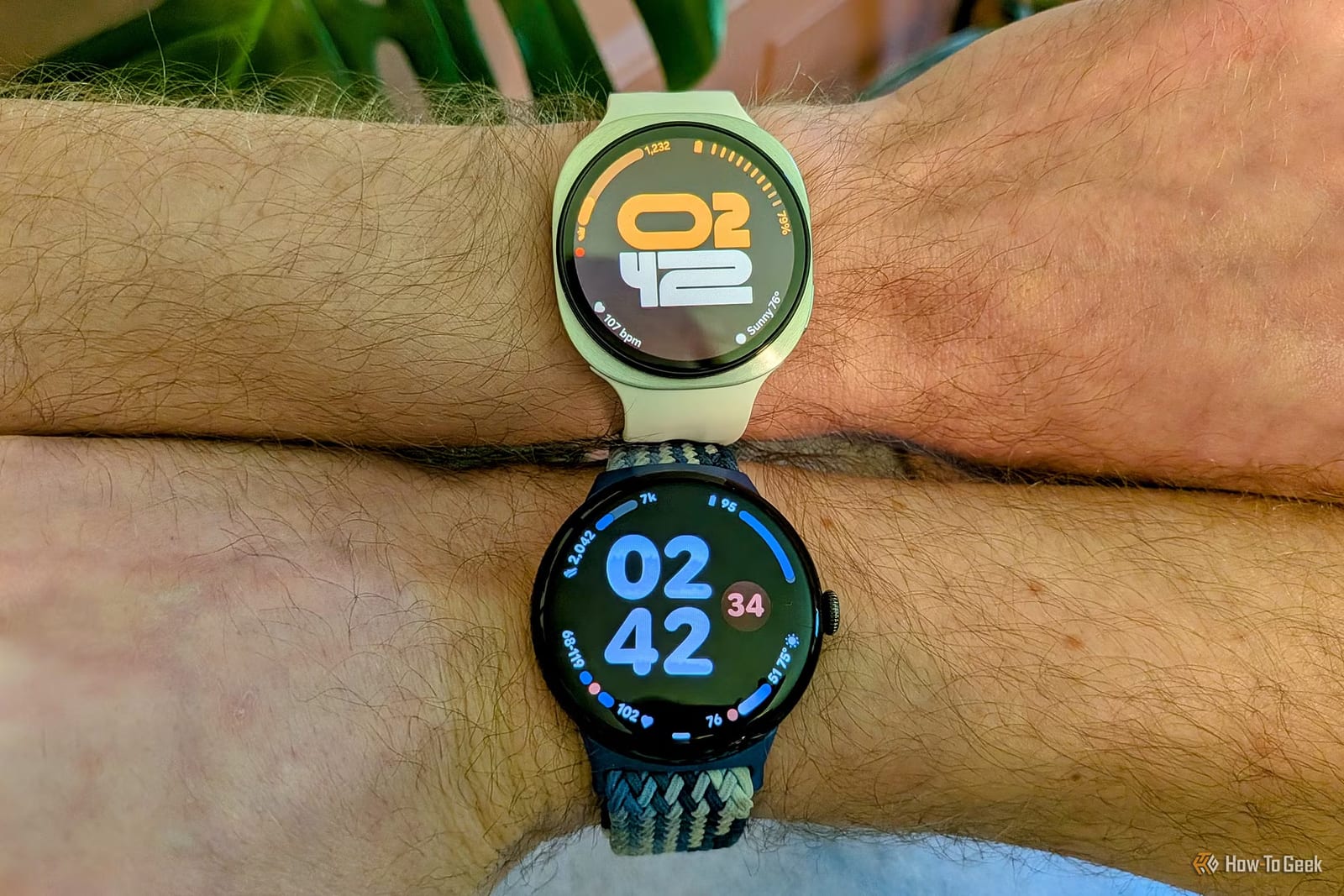
Many Galaxy Watch owners never open some of the watch's most useful settings. A How-To Geek roundup by Shikhar Mehrotra points to five of them. The most important one for anyone who pays with the watch is a screen lock, which takes about a minute to set up.
Lock the watch
If you use Samsung Pay on the watch, or just want your data kept private, you can require a code to unlock it. On the watch, go to Settings, then Security and privacy, then Lock Type. You can choose a pattern, rated medium security, or a PIN, rated medium-high. Enter it twice to confirm.
After that, you enter the code once when you put the watch on. It stays unlocked until you take it off.
Control it with your wrist
Under Settings, then Advanced Features, scroll to Gestures. There are three options.
- Answer calls: move your raised forearm up and down twice.
- Dismiss alerts and calls: rotate your wrist twice. This also silences alarms.
- Quick launch: flex your wrist twice to open an app or feature you choose.
Cut the noise
If your phone sends the watch too many alerts, open the Galaxy Wearable app on the phone. Tap Watch Settings, then Notifications, then App Notifications. Turn off the All apps switch at the top. Then turn on only the apps you want to see on your wrist.
Small changes that add up
The watch can also play a sound at the start of every hour, like old digital watches. Go to Settings, then Sound and Vibration, then System Sounds, and switch on Hourly chime.
You can also change what the buttons do. Go to Settings, then Advanced Features, then Customize Buttons. By default, double-pressing the home button opens your most recent app, and holding it brings up the Bixby voice assistant. Holding can be switched to the power-off menu instead. The side button goes back by default, but it can show recent apps.
What to do first
The lock is the one worth doing today. The other four are matters of taste. Gestures and button changes depend on how you use the watch, and notification limits depend on how busy your phone is.
The takeawayIf you pay with a Galaxy Watch, set a PIN under Settings, Security and privacy, Lock Type, so a lost watch cannot be used to spend your money.