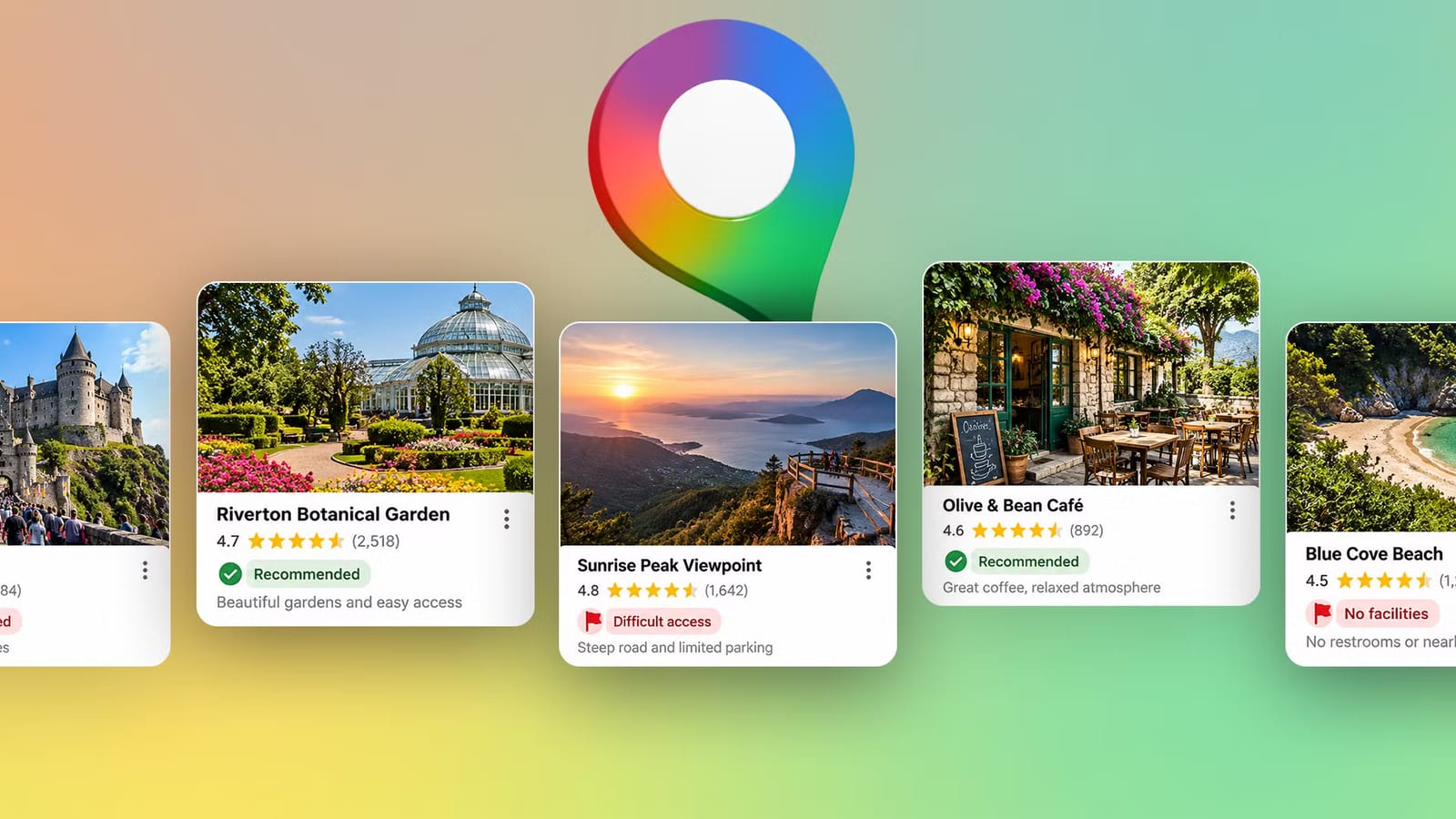
Before driving to an unfamiliar café, scenic spot or attraction, a few minutes in Google Maps can show whether the trip is worth it. Android Police writer Anu Joy lays out a routine that uses Street View, satellite view, reviews, visitor photos and Gemini, Google's AI assistant, to catch red flags early.
Start with Street View
Street View gives a ground-level look at a place and the streets around it. On Android, search for the destination, open its place details, and tap the Street View photo at the bottom. Then look at the building's exterior, nearby landmarks, the road layout and possible entrances.
This helps most with a large complex, a café on a busy road, or an attraction in a neighborhood you do not know. One catch: Street View is not live footage. The imagery may be months or years old, so treat it as a guide.
Check the map from above
The standard map is good for roads but does not always show what surrounds a destination. Satellite view can show whether a spot is surrounded by dense development, far from the main road, or near open space. To switch, search for the place, tap the layers icon, and select Satellite under Map type.
It can also show whether other places worth visiting sit nearby, which matters if the plan is to spend a few hours in the area.
Let reviews and Gemini do the reading
A high rating does not tell the whole story. If the same concern shows up in several reviews, it deserves attention. For people who do not want to read dozens of comments, Gemini in Google Maps can sum them up. Open Maps, search for a destination, and look for the Ask button.
- Ask about the most common complaints at the place.
- Ask whether visitors mention recurring issues.
- Ask practical questions about parking, crowds or facilities.
Look past the main photos
The photos at the top of a listing can flatter a place. Angles, lighting and a focus on one attractive feature can leave an incomplete picture. Scrolling through images uploaded by visitors can show the condition of facilities, the view beyond the main attraction, the seating at a café, or the surroundings of a tourist spot.
What these checks cannot do
None of this guarantees a good outing. Street View can be outdated, photos do not tell everything, and even repeated complaints need context. Some surprises are unavoidable. The aim is more modest: set realistic expectations and spot a potential problem from the phone instead of after the drive.
The takeawayBefore driving somewhere new, check Street View, satellite view, visitor photos and reviews in Maps, and remember the imagery may be old.