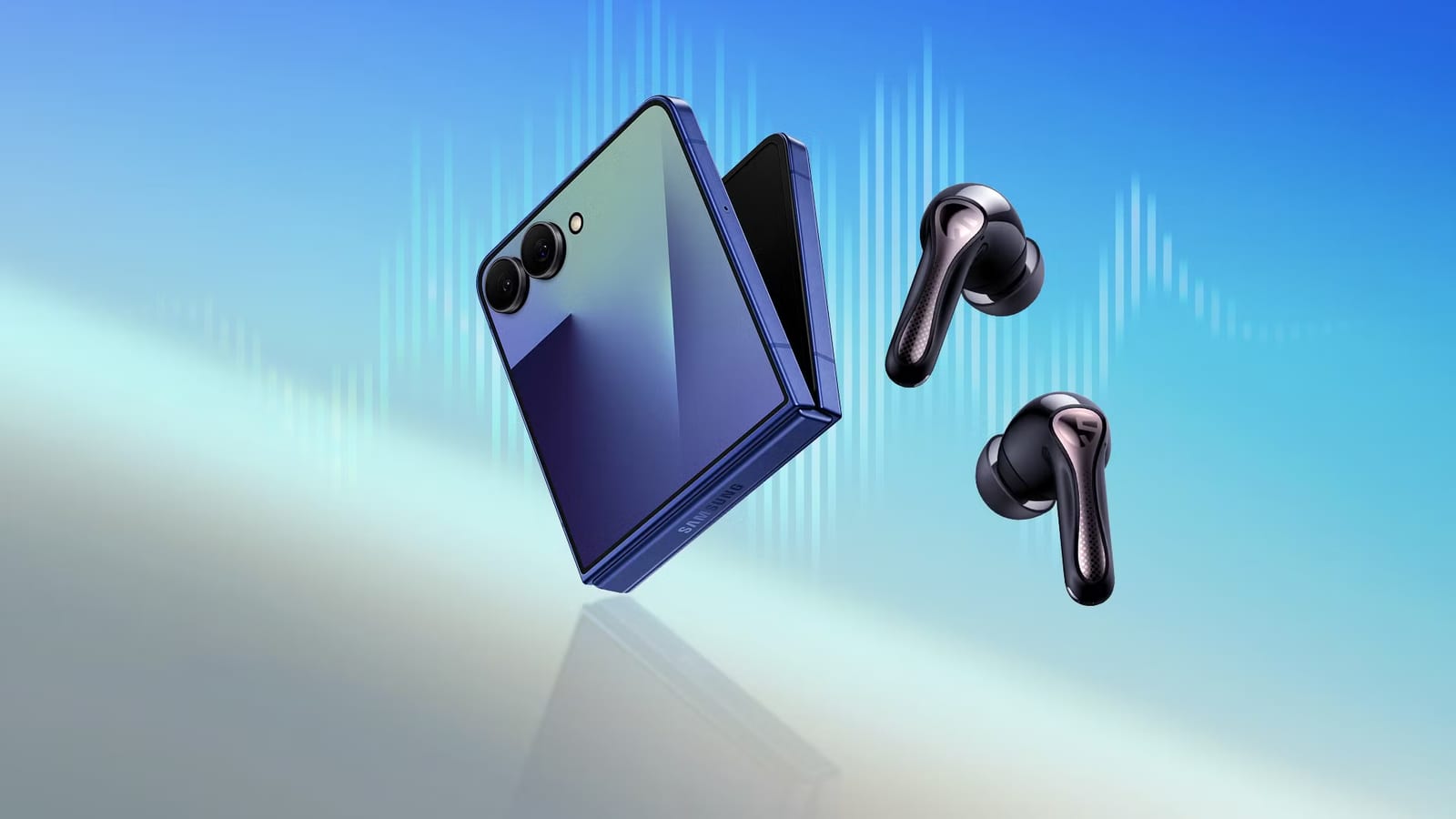
Cheap earbuds can sound much better on some Android phones if one buried switch is turned on. A writer at Android Police found his Samsung Galaxy Z Flip 7 was playing his earbuds at lower quality than his Google Pixel 9 Pro XL. The earbuds were fine. A setting on the phone was holding them back.
What went wrong
The earbuds were SoundPeats Air 5 Pro+, bought under his personal $100 limit for wireless earbuds. On the Pixel, they sounded crisp. On the Samsung, vocals seemed flatter and bass sounded softer. He tested this with songs by Adele and Billie Eilish.
The earbuds' own app showed LDAC was on. LDAC is a high-quality way of sending music over Bluetooth. But a hidden Developer Options menu on the phone showed the audio format set to AAC, a lower tier. The sample rate and bit rate, which describe how much sound detail is sent, were also stuck at lower levels.
The fix
The missing piece was in the phone's regular Bluetooth settings. With the earbuds connected, he tapped the gear icon beside the device name. The LDAC toggle there was off. Once he turned it on, Developer Options moved the sample rate and bit depth to their highest settings on their own.
On his Pixel, that menu has no separate LDAC switch, so the two phones behave differently. He says he is not sure whether the Samsung toggle applies to every Galaxy phone that supports LDAC.
A catch with the top setting
The phone can also choose how much data it sends. The adaptive option switches between 330, 660 and 990 kbps, a measure of how much audio is sent each second. Locking it to the top 990 kbps option caused occasional dropouts and sudden stutters. These were most annoying in longer listening sessions.
He switched to the balanced preset, which tops out at 660 kbps. He has had no playback hiccups since. He suggests trying the highest setting first to see if drops appear on your own phone.
What to do
- Connect your earbuds, open Bluetooth settings and tap the gear icon beside their name.
- Look for an LDAC or high-quality audio toggle and turn it on if it is off.
- If it does not take effect, check that HD audio is on in Developer Options.
- If sound stutters, try the balanced 660 kbps preset instead of the top one.
Not every phone or pair of earbuds supports LDAC, and menu names can differ by brand. The steps above come from one writer's experience with one Samsung phone.
The takeawayIf earbuds sound dull on an Android phone, check the gear icon in Bluetooth settings for an off LDAC switch before blaming the earbuds.