Before opening ChatGPT or Gemini for a small task, check your Galaxy phone first. How-To Geek writer Sanya Shah says four Samsung features handle everyday jobs without copying text or photos into another app: rewriting messages, editing photos, summarizing voice notes and searching for things on screen.
Writing help inside the keyboard
Samsung Keyboard has a tool called Writing Assist. Type what you want to say, then use it to fix grammar, change the tone or rewrite the message. All of that happens inside the conversation. The article gives an example: a blunt dinner question can be reworked into a friendlier, more casual or more polite version.
The same keyboard also has text shortcuts, which expand phrases you type often. For people who want suggestions as they type, a third-party tool such as Grammarly can be added to the keyboard. For everyday messages, the author calls the built-in tools more than enough.
Photo fixes in Gallery
Photo Assist in Samsung Gallery removes unwanted objects or strangers from the background. It can also move or resize subjects and fill empty areas using a feature called Generative Edit. That means the phone creates new image content to fill the gap. The author notes there is no need to upload the photo to another app or download an edited copy.
One UI 9, the latest version of Samsung's phone software, adds My FanCam. Record a crowd scene, such as a school event, then pick one person afterward. The phone follows that person and crops the video to keep them centered.
Voice notes and visual search
One UI 9 also improves Samsung Voice Recorder. Its AI-written summaries now come with clear headings and tables instead of one long block of text. That helps when a recording holds several ideas and you only need one detail. The author records article ideas while driving and reads the summary later.
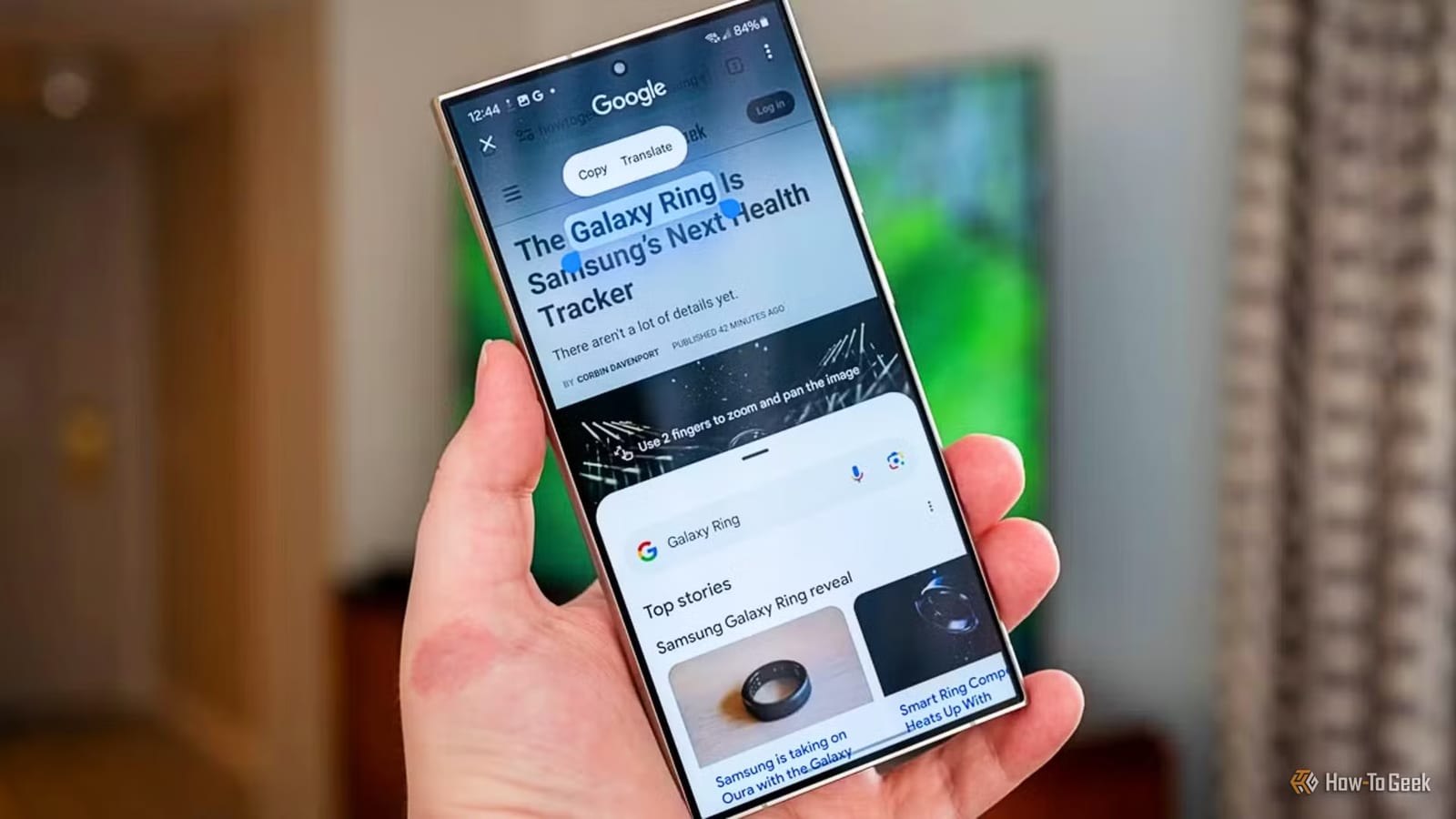
Circle to Search covers the fourth job. Long-press the navigation bar, then circle an item on screen, such as a handbag or a piece of furniture seen on Instagram. The phone searches for it without leaving the app. It can find similar products, show prices or identify something unfamiliar.
What to do
- Try Writing Assist the next time a text needs a softer tone.
- Open a photo in Gallery and look for Photo Assist before using another editor.
- Record a voice note and check the summary in Voice Recorder.
- Circle something on screen instead of describing it in a search box.
The article does not say which Galaxy models get One UI 9 or when. It also does not compare these tools with standalone AI apps. The author's point is narrower: a built-in feature may already do the job, and it saves a step.
The takeawayBefore reaching for another AI app, check whether your Galaxy keyboard, Gallery, Voice Recorder or Circle to Search already does the job.