If your iPhone says a saved password may have shown up in a data leak, it does not mean you were hacked. It means that password has been exposed somewhere, and anyone who has it could try it on your accounts. The warnings are real, and flagged logins stay in the Passwords app so you can deal with them later.
What the warning means
The alert does not say where the password leaked. It also does not mean the website reported a breach. The risk comes from reuse. If you used the same password on a small forum and on your bank, a hack of the forum could put the bank account at risk too.
The app also flags weak or reused passwords, even when no leak is known. So a warning can be a nudge to improve a login, not proof of a problem.
How Apple checks
Your iPhone compares your saved logins with a list of commonly leaked passwords stored on the device. For passwords not on that list, it runs privacy-preserving checks with Apple's servers. It sends information derived from the password, not the password itself. Apple says it does not keep that information.
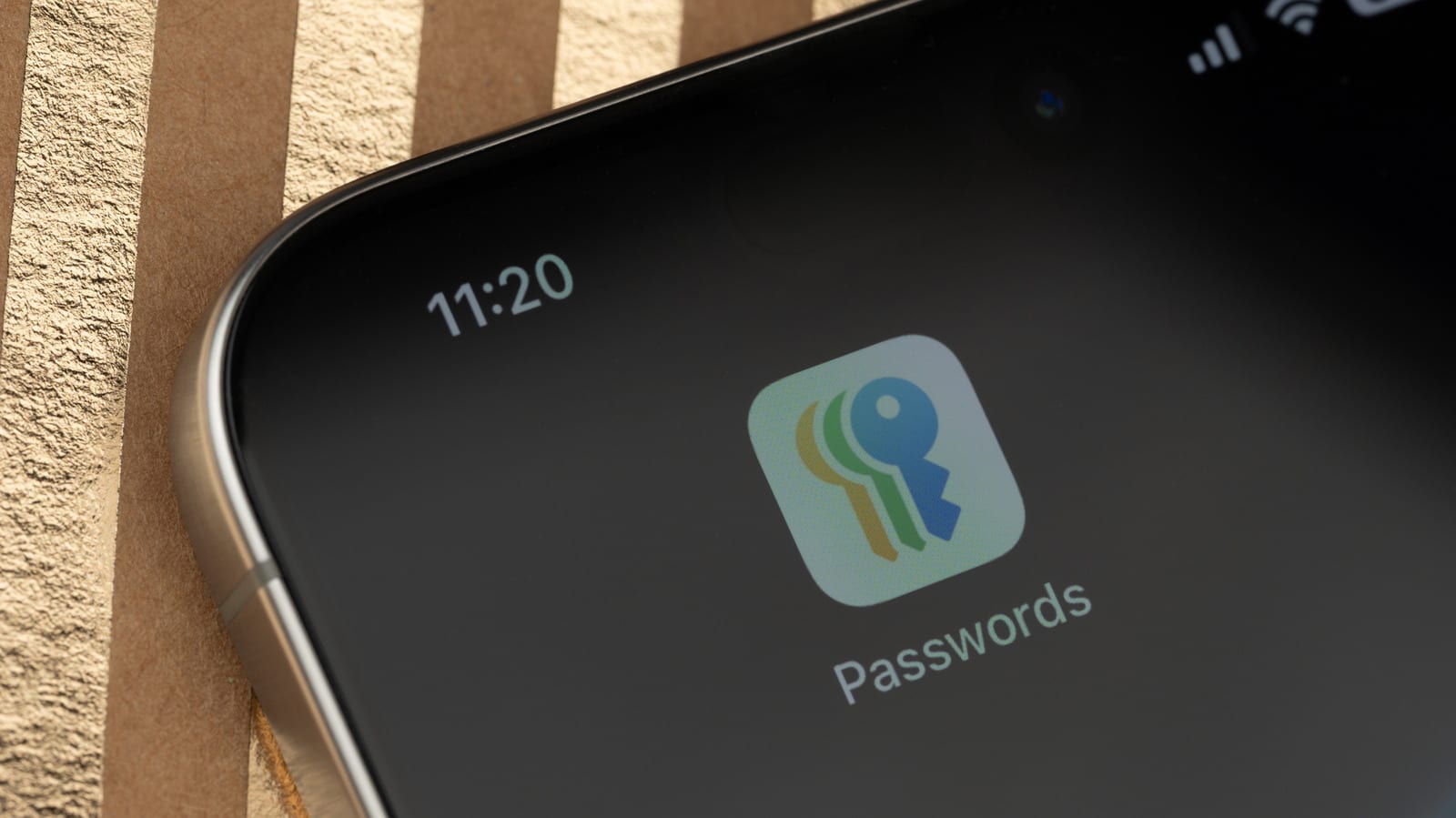
The Passwords app arrived in iOS 18 and is free. It stores logins and passkeys and can sync them through iCloud Keychain with end-to-end encryption. Windows users can reach it through Chrome or Edge after setting up iCloud for Windows and the browser extension. There is no Android app.
What to do
Open Passwords and unlock it with Face ID, Touch ID or your passcode. Look at the flagged logins and start with your email and bank accounts. One detail trips people up: changing a password inside the app does not change it on the website.
- Change the password on the website or app first.
- Then update the saved login in your password manager to match.
- If you reused a password, change it everywhere.
- Turn on two-factor authentication where you can.
- Consider passkeys on sites that support them, since they can replace passwords.
Most password managers notice when you change a password and offer to update the saved copy. Hiding a security recommendation does not fix the password behind it.
If you never see alerts
If you have used Passwords for a while and never seen a warning, check that monitoring is on. Go to Settings, then Apps, then Passwords, then Detect Compromised Passwords.
Google Password Manager offers similar checks through Chrome on iPhone, but only for passwords saved with Google. Other managers, such as 1Password, offer similar features.
Watch for fake alerts
Scammers can imitate security warnings. If an email, text or browser pop-up says your password leaked, do not tap its links. Open the Passwords app and look there instead. Falling for a fake alert causes its own problems.
The takeawayOpen the Passwords app today, fix flagged logins on each website first, and start with your email and bank accounts.