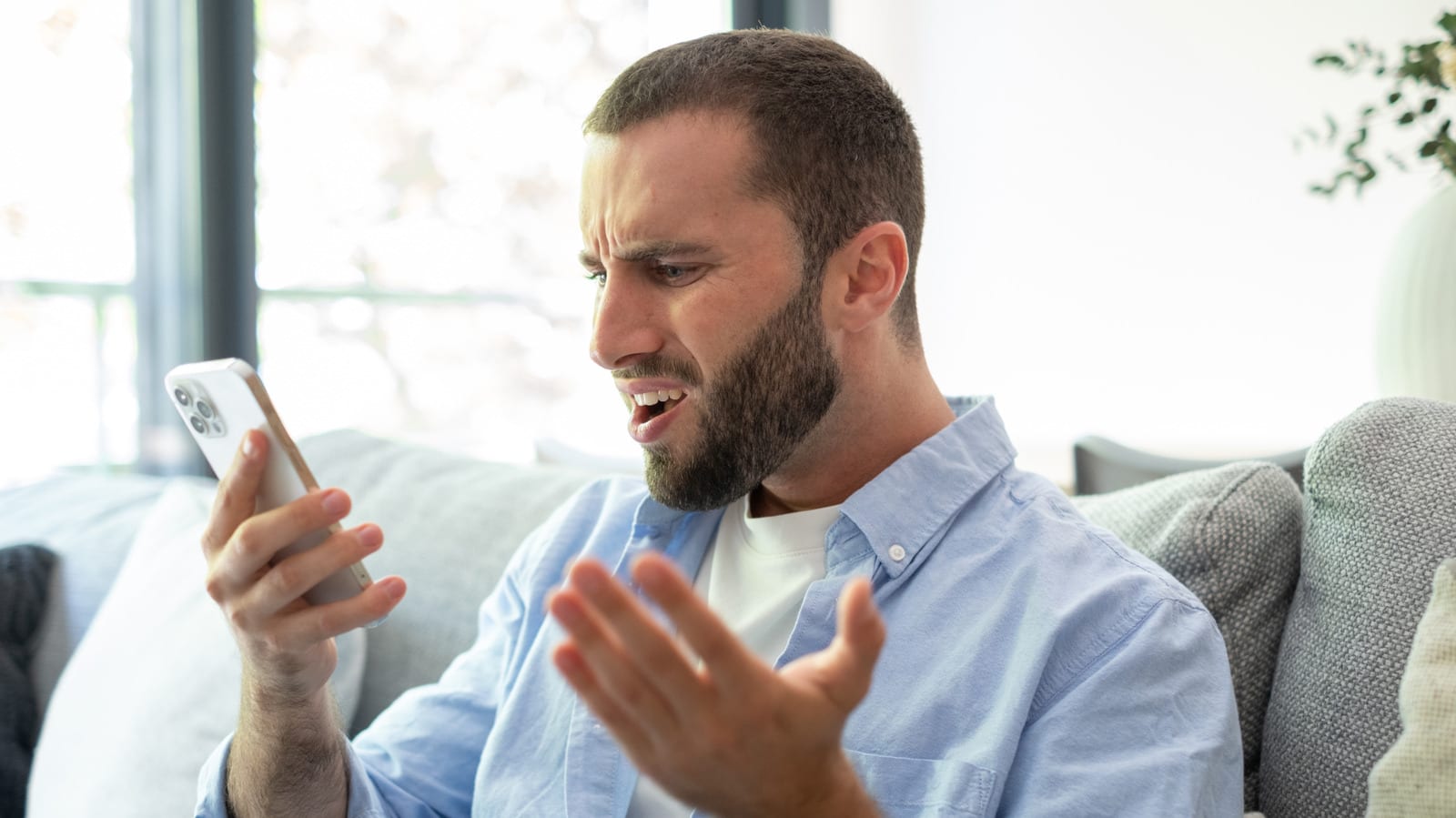
If your phone screen keeps getting darker even though auto-brightness is off, the cause is often simple. Heat, a battery saver mode or a short screen timeout can each dim the display on purpose. Most of these fixes are free. Real damage is possible, but it comes with clear warning signs.
Heat is the first suspect
A hot phone is built to protect itself. It cuts back on energy and performance to keep its internal temperature steady. The screen is one of the most power-hungry parts, so brightness gets turned down. Gaming, using the camera, streaming HD video, updating software and wireless charging can all heat a phone up.
The fix is to let it cool. Move it somewhere more comfortable, take off the case so heat can escape, and close any apps or tasks that demand a lot of power.
Settings that dim the screen
- Power saving modes dim the screen by default to stretch battery life.
- A screen timeout under one minute makes the screen dim quickly.
- On iPhone, Attention Aware Features dim the screen when you are not looking at it.
- On iPhone 14 Pro and later, Always-On Display dims the Lock Screen by design.
To turn off Attention Aware Features, go to Settings > Accessibility > Face ID & Attention. Always-On Display is on by default for newer iPhones, except the Air, so it can surprise people who never chose it.
Sensors and screen protectors
The proximity sensor turns the screen off when the phone is held to your ear. On an iPhone it sits near the top. If it is dirty, the screen can dim or go black. Wiping the top with a microfiber cloth can help. A screen protector that is slightly misaligned can also block the sensor, and a new one sometimes solves it.
Android phones
Android phones dim for the same reasons. Only the setting names differ. On Samsung Galaxy phones, Keep screen on while viewing uses the front camera to detect your face. It is under Settings > Display > Screen timeout. Power saving lives under Settings > Battery and device care > Battery. It can cut brightness by 10 percent and limit processor speed to 70 percent.
On Google Pixel phones, check Extra dim, which lowers brightness below the usual minimum. On Pixel 9 and earlier, it is under Settings > Accessibility. Battery Saver is under Settings > Battery.
When it is damage
If nothing helps, get the phone diagnosed. Warning signs include flickering, light surges, a dark screen at startup, bright or shadowy spots, ghosting and permanent dimming. These point to internal damage that settings cannot fix. A new screen can be costly, especially on OLED or AMOLED displays, which newer iPhones, Galaxy S-series phones and Pixels use. At that point, pricing a replacement phone may make more sense.
The takeawayBefore paying for a repair, cool the phone down and check battery saver, screen timeout and the attention or always-on settings.