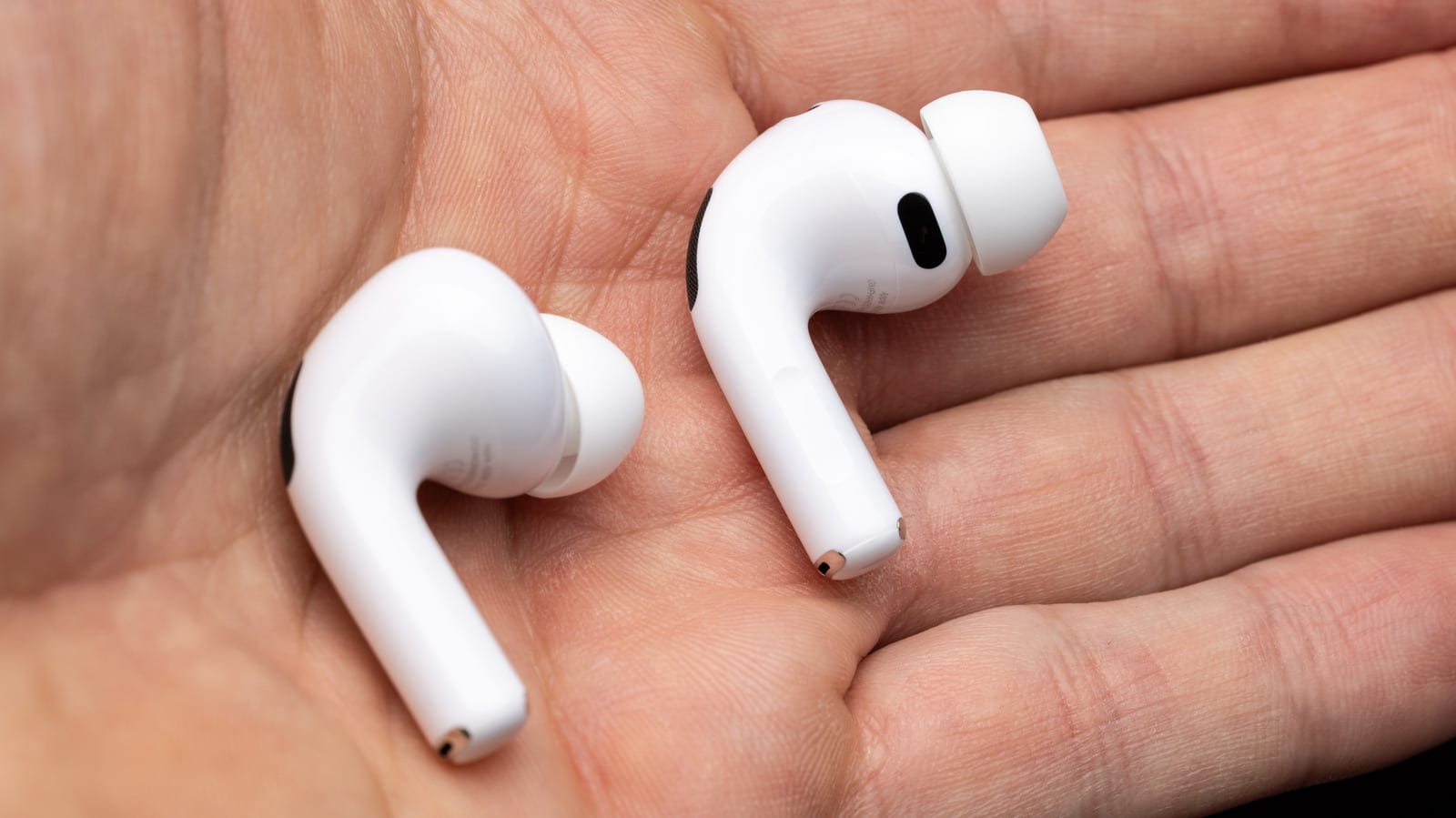
If your AirPods keep cutting out, they may not be disconnecting at all. When you own an iPhone, an iPad and a Mac, the earbuds can bounce between them. The fix takes a few minutes in Settings, and it starts with checking automatic switching.
Why it happens
Automatic switching is available on all AirPods Pro and AirPods Max models, plus AirPods 2 or later. If you use your AirPods on several devices, or ever have, they may keep trying to connect to each one. When another device starts playing audio, it becomes a battle over which one played sound most recently.
Fix the switching
Put your AirPods in your ears. On an iPhone or iPad, open Settings and select your AirPods near the top. Then choose Audio & Routing, then Connect to this iPhone or iPad, and pick When Last Connected. You need to make this change on every device.
- Keep Automatic on the device you use most.
- Set When Last Connected on all your other Apple devices.
- Use Forget This Device in the Bluetooth menu on any device you never use them with.
Other common culprits
First, check the Bluetooth menu to confirm the AirPods really disconnected. Automatic Ear Detection pauses playback when you take a bud out. If its sensor misbehaves, music can stop for no clear reason. Run the Ear Tip Fit Test in the AirPods settings first, since the wrong or dirty tips can let buds slip. Clean the buds and the case too.
If that does not help, turn off Automatic Ear Detection under Audio & Routing and see if the problem continues. If dropouts happen only when streaming, not with downloaded audio, network issues are likely. A microwave, many Bluetooth devices or heavy Wi-Fi use can cause interference. Siri can also interrupt playback, but turning it off under Settings > Siri > Requests turns it off for the whole device.
If you use a Mac
Open Control Center, select Sound and confirm the output is your AirPods. Quit apps that compete for control. Update your Mac. To update AirPods firmware, plug in the case, put both earbuds inside, close the lid and leave them near a Wi-Fi-connected Apple device for at least 30 minutes.
If problems continue, unpair the AirPods from the Mac, restart it and pair them again. A full reset is the last resort, and the steps depend on the model, so follow Apple's reset guidance.
The takeawaySet When Last Connected on your secondary Apple devices and keep Automatic on your main one before assuming your AirPods are broken.