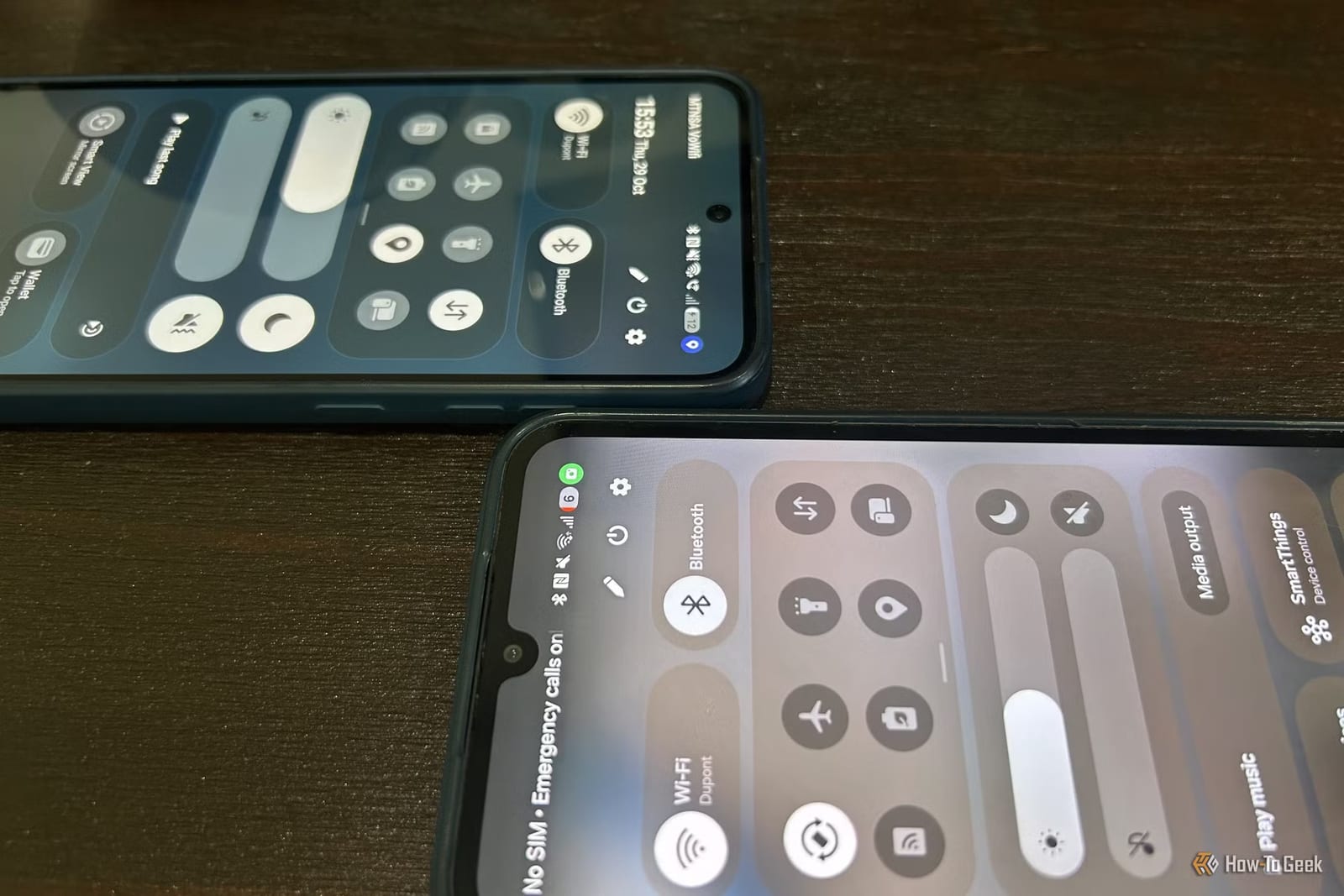
If a small green or blue dot appears in the corner of your Samsung Galaxy screen, an app is using something private. Green means your camera, your microphone, or both are in use. Blue is new with One UI 9, Samsung's latest phone software, and it shows when an app is sharing your location.
What the dots mean
The green dot has been on Samsung Galaxy phones since One UI 4 arrived in 2021. It can show up in obvious moments, like opening the camera app or recording a voice memo. Some apps can be sneakier. The blue dot works the same way, but it tracks location instead of the camera or mic.
A dot alone is not a reason to worry. Google Maps needs your location. A camera app needs your camera. The concern starts when an app that has no clear need for that information lights up a dot.
Why location matters
The writer at How-To Geek says the blue dot showed up far more often than expected after the One UI 9 update. The article notes that location data is used in many ways to build online profiles for advertisers. In its words, you and your information are becoming a commodity that is being sold.
How to see which apps are using what
Not sure which software version your phone runs? Open Settings and tap Software update. To see what your apps have been doing, follow these steps:
- Open Settings and go to Security and privacy.
- Under the privacy section, tap Permissions used in the last 24 hours.
- See each permission, such as location or camera, and which apps used it.
- Switch the view at the top to see every app and the permissions it used.
What to do about it
If an app is reaching for more than it should, you can take its permissions away. Viewing by permission, tap the app and choose how it should be handled. Viewing by app, tap the app, hit the three dots in the top right corner, and pick Manage permissions for this app or Deny all permissions for this app.
The article's view is that limiting permissions helps, but the best answer for an app that keeps overreaching is to uninstall it and find a more private alternative.
The takeawayWhen a green or blue dot appears and the app has no reason for it, check Security and privacy in Settings, then restrict the app or delete it.