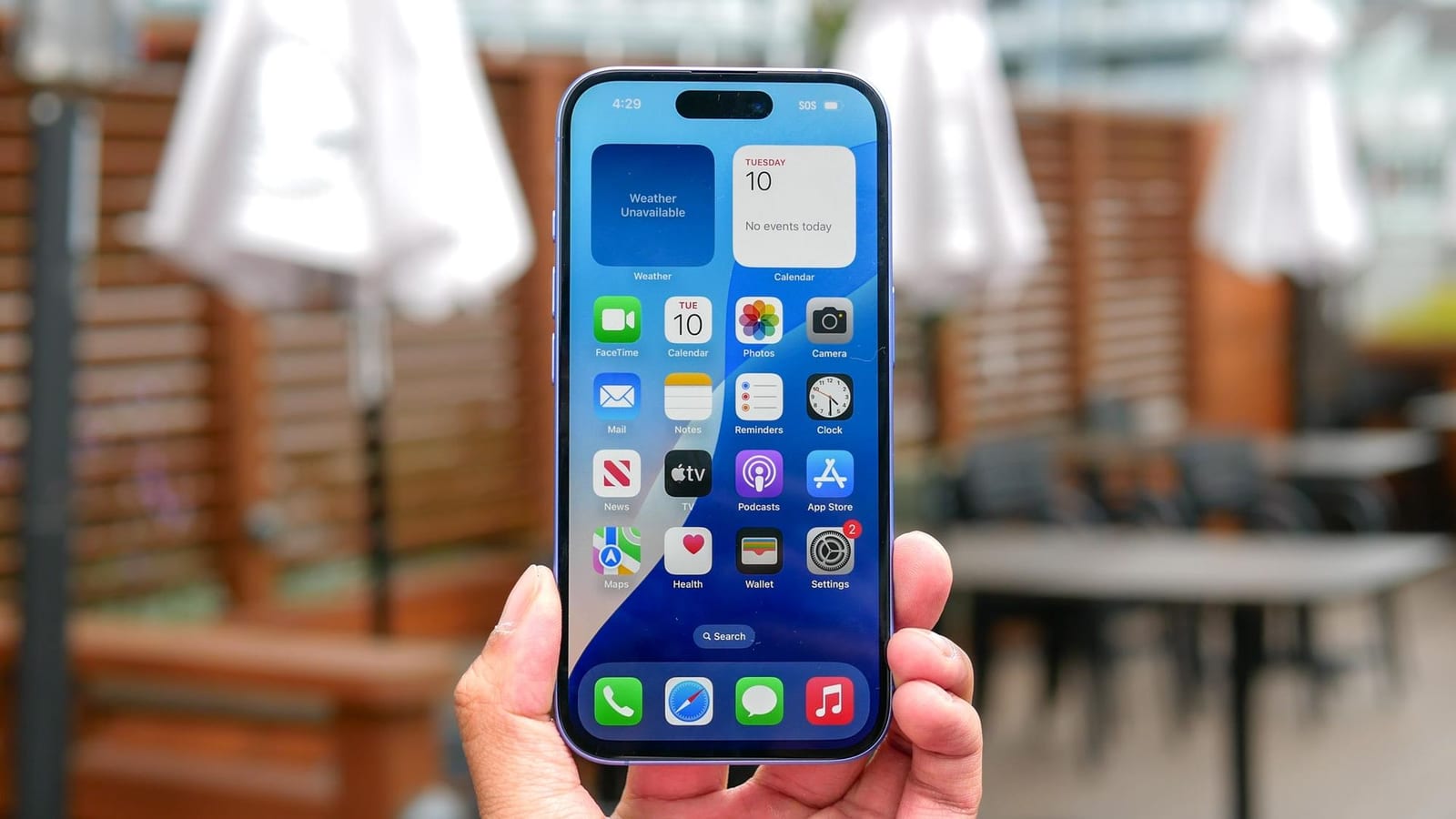
Two settings built into the iPhone can clear a storage warning without deleting your photos, videos or apps, according to a how-to from Tom's Guide. One shrinks your photo library on the phone. The other removes apps you rarely use but keeps your logins.
Photos and video
Video is often the biggest space hog. Sixty seconds of 4K video can use nearly half a gigabyte. To ease the load, open Settings, then Apps, then Photos. Make sure iCloud Photos is on, then tap Optimize iPhone Storage.
The phone then keeps smaller previews and moves the full-quality files to iCloud, Apple's online storage. When you open a photo or video, the original downloads on demand.
Apps you rarely open
Think of airline boarding passes, occasional parking apps or games you have not touched in weeks. Go to Settings, General, then iPhone Storage. Your apps are listed from biggest to smallest. Tap one you do not need and choose Offload App.
Offloading removes the app but leaves your data, settings and logins untouched. To bring it back, tap the grey cloud icon on your home screen.
What is not clear
The article does not say how much space a typical phone will gain. It also notes that photos may need iCloud storage but gives no plan sizes or prices. Checking how much iCloud space you have is a sensible step before switching the photo setting on.
The takeawayTurn on Optimize iPhone Storage for photos and use Offload App for apps you rarely open, but check your iCloud space first.