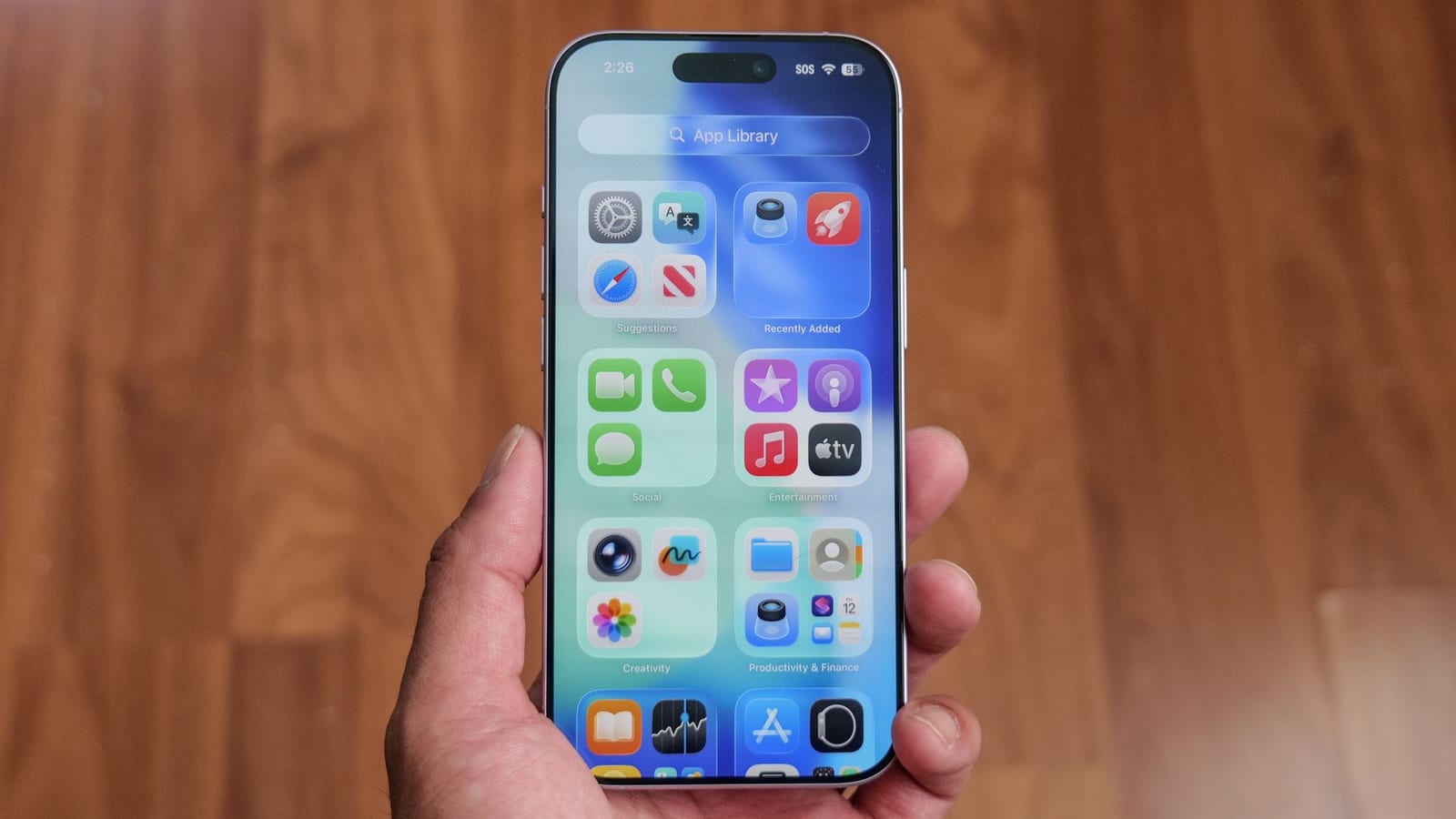
If an iPhone feels slow, runs warm or glitches since the iOS 27 update, a few settings can help right away. Tom's Guide how-to editor Kaycee Hill says changing them made an immediate difference. Two are settings to switch. The third is a fix for a known screen freeze.
Why the phone may feel slow
Some lag after an update comes from background indexing, which is the phone sorting and cataloging its files. It usually settles down after a couple of days. Heavy system features can add to the slowdown in the meantime, and those are the ones worth adjusting.
Turn off the glass effects
Liquid Glass is the translucent look Apple introduced in iOS 26. It reflects ambient light and your wallpaper. Drawing all that see-through detail in real time makes the phone's graphics chip work harder.
iOS 27 adds a slider under Settings, Appearance, Liquid Glass to raise tint and opacity. It helps text stand out, but it does not stop the effect from running in the background. To shut it down fully, go to Settings, Accessibility, Display & Text Size and turn on Reduce Transparency.
Stop leaving Low Power Mode on
Low Power Mode works by cutting the iPhone's processing speed in half. That can cause lag, slow app loading and delayed web pages while you are using the phone. iOS 27 manages background tasks a bit more smartly when the battery is low, but the throttling is still there.
It is meant as a safety net when the battery hits 20% and the phone is sitting idle. To turn it off, go to Settings, Battery, Power Mode and switch Low Power Mode off.
If the screen freezes
A known iOS 27 bug can freeze the display if you pull down Control Center or Notification Center too fast. The torch and camera icons get stuck at the top, and the screen stops responding to touch. The normal power-off slider is out of reach, so a force restart is the way out:
- Press and quickly release Volume Up.
- Press and quickly release Volume Down.
- Press and hold the Power button until the screen goes dark and the Apple logo appears.
This clears the frozen state and does not erase any data.
The takeawayTurn on Reduce Transparency, switch off Low Power Mode unless the battery is low, and force restart if the screen freezes.