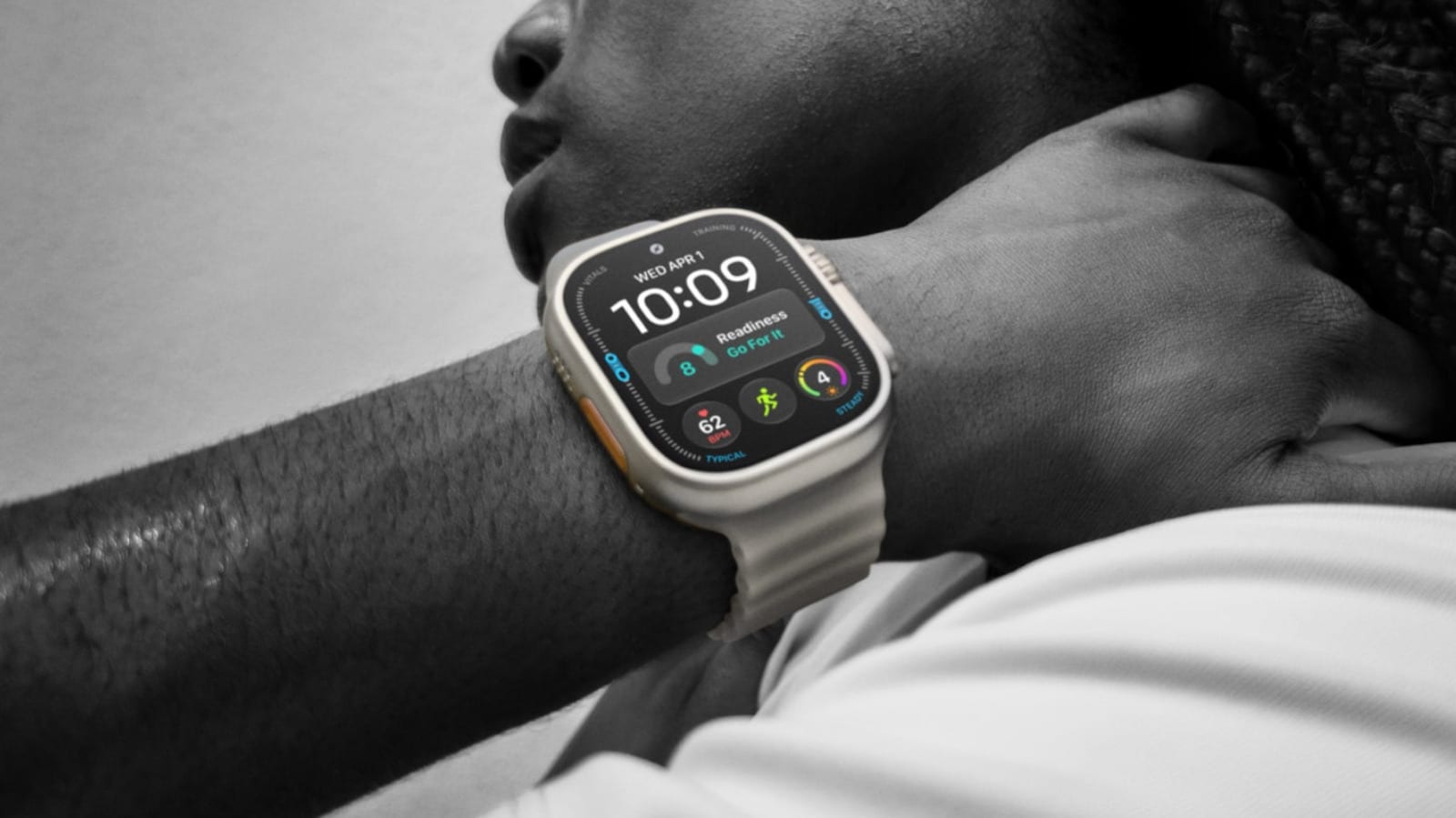
The orange action button on the Apple Watch Ultra 4 can do much more than start a workout. It can switch on a flashlight, record a route you can retrace, run a smart home routine and sound an emergency siren. Only one job can be assigned at a time, but it can be changed in seconds.
What the button is
The Ultra 4 costs $800 and lasts up to 50 hours per charge. A Series 12 needs charging every day. The action button sits next to the speaker grille. It is a shortcut for tasks that other Apple Watch owners must reach through menus or complications. Engadget notes that Apple tends to downplay it these days.
Simple and mid-level options
The easiest choices are Flashlight, Voice Memo, Translate and Recognize Music. Press once to start and again to stop. Recognize Music should be nearly instant on the Ultra 4, thanks to Apple's new Audio Intelligence features, which also support automatic Shazam detection.
- Stopwatch: one press starts timing, the next marks a lap.
- Workout: opens the Workout app or jumps into a chosen activity.
- Dive: a press starts a dive, and action plus side buttons opens a second function.
- Pause most of these by pressing the action and side buttons together.
Navigation and accessibility
Waypoint drops markers you can see in the Compass app and on the Waypoint watch face. Some are added automatically, such as your parked car and the last spot with cell signal. Backtrack records a precise route to retrace later. Pressing action and side together switches between Record and Retrace. The Accessibility option can trigger tools like AssistiveTouch and VoiceOver.
The Shortcut option
Engadget calls Shortcut the most powerful choice. It runs any automation built in the iPhone's Shortcuts app. One tap might turn on your lights, adjust your thermostat and play local news on a HomePod. In iOS 27, on iPhones with Apple Intelligence, you can build a shortcut by describing what you want. Check the result. An "I'm driving home" routine could send an ETA to the wrong person.
What to do
Hold the button briefly to open the Quick Switch menu and change its job on the fly. That helps most outdoors, where switching to navigation can matter. For daily life, pick the habit you repeat most and give it the button.
The takeawayAssign the Ultra 4 action button to your most frequent daily habit, and hold it briefly to switch jobs when your activity changes.