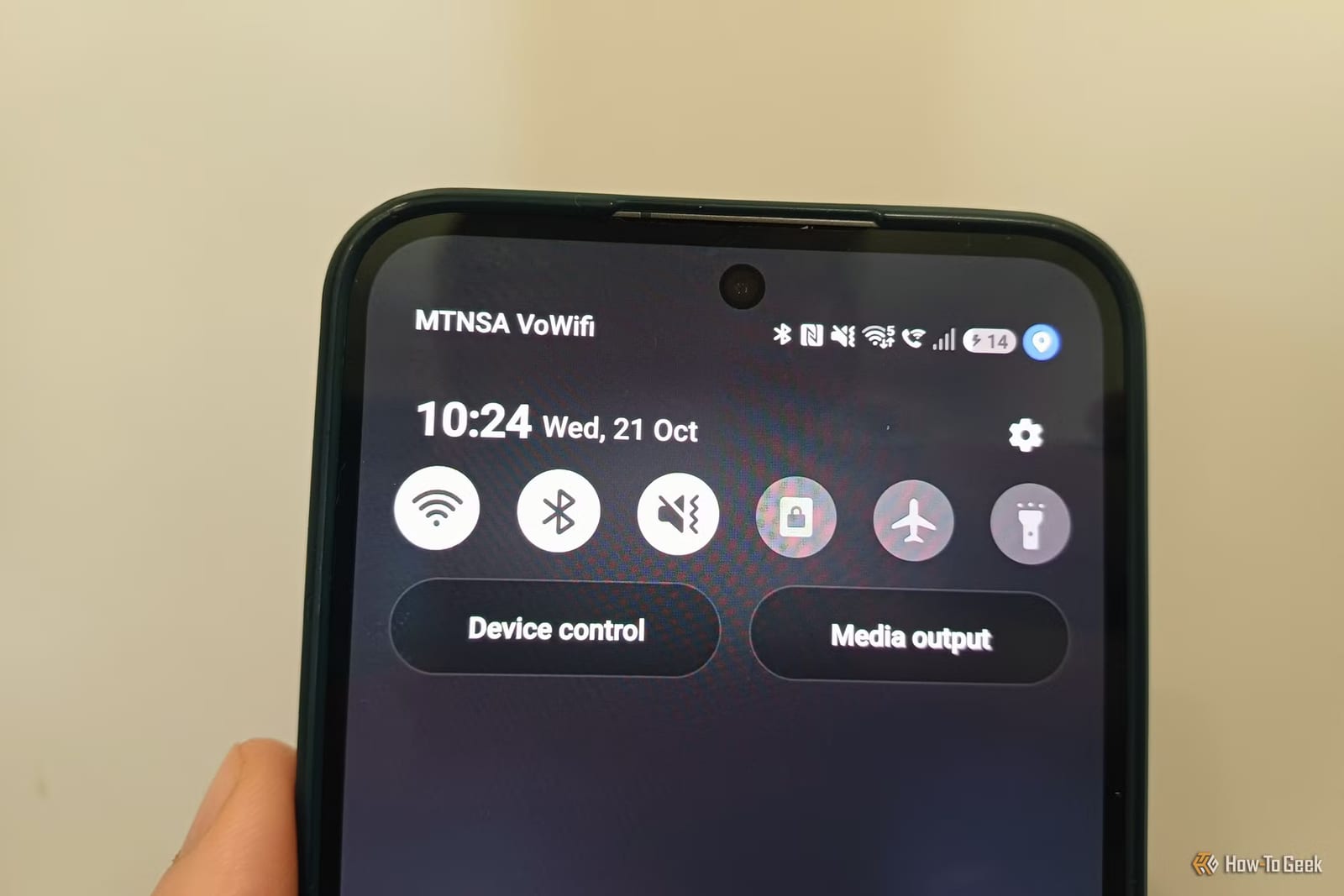
That small landline handset icon on your Android phone most likely means Wi-Fi calling is on. The icon shows a handset with a Wi-Fi symbol above it. A handset with an arrow pointing away is a different feature, call forwarding. Neither one is turned on by default, so if you never enabled them, it is worth a quick look.
What the icon means
The Wi-Fi calling symbol appears in your status bar when you are on a call routed through your Wi-Fi network. As long as the feature is toggled on, it also shows in your quick panel, the menu you pull down from the top of the screen. There it sits alongside other features that may be active, such as Bluetooth and NFC.
What Wi-Fi calling does
Instead of using your mobile network, your phone uses your Wi-Fi connection for calls. This also covers traditional text messages. You still use your regular phone number and the built-in phone app. You do not need a third-party app like WhatsApp or Skype.
It can help if your mobile signal is weak at home. Tyler Dupont, the How-To Geek writer behind the piece, says his mobile coverage is patchy while his internet is more reliable. On most Android phones, the toggle sits near the top of the connection settings.
Where it falls short
Wi-Fi calling is not always better. If your internet becomes unstable, your call quality will too. Some rooms in a home may not get a strong enough Wi-Fi signal. When the connection is poor, the phone may switch back to the mobile network, which can cause its own problems.
You can set which network your phone prefers. In the Wi-Fi calling settings, choose Wi-Fi or mobile network first. The phone falls back to the other only when it has no better option.
Other handset icons
- A handset facing downward with a bouncing arrow means a missed call.
- A handset with an arrow pointing away means call forwarding is active.
- Other handset symbols can mean you are receiving or placing a call, or have a voicemail.
Call forwarding should not turn itself on. To check, open the settings in your phone app, scroll to Supplementary services, and tap the call forwarding tab.
What to do
If you see either icon and did not turn the feature on, check your settings first. Look for the Wi-Fi calling toggle in your connection settings and the call forwarding tab in your phone app. Both features can be useful, but neither should enable itself.
The takeawayIf you see a handset icon you did not expect, check your connection settings for Wi-Fi calling and your phone app settings for call forwarding.