A writer at Android Police says six settings hidden in Samsung's One UI software made his Galaxy phone quieter and easier to use. He wishes he had changed them on day one. None of them needs an extra app. Each takes a few taps.
Fewer swipes, less clutter
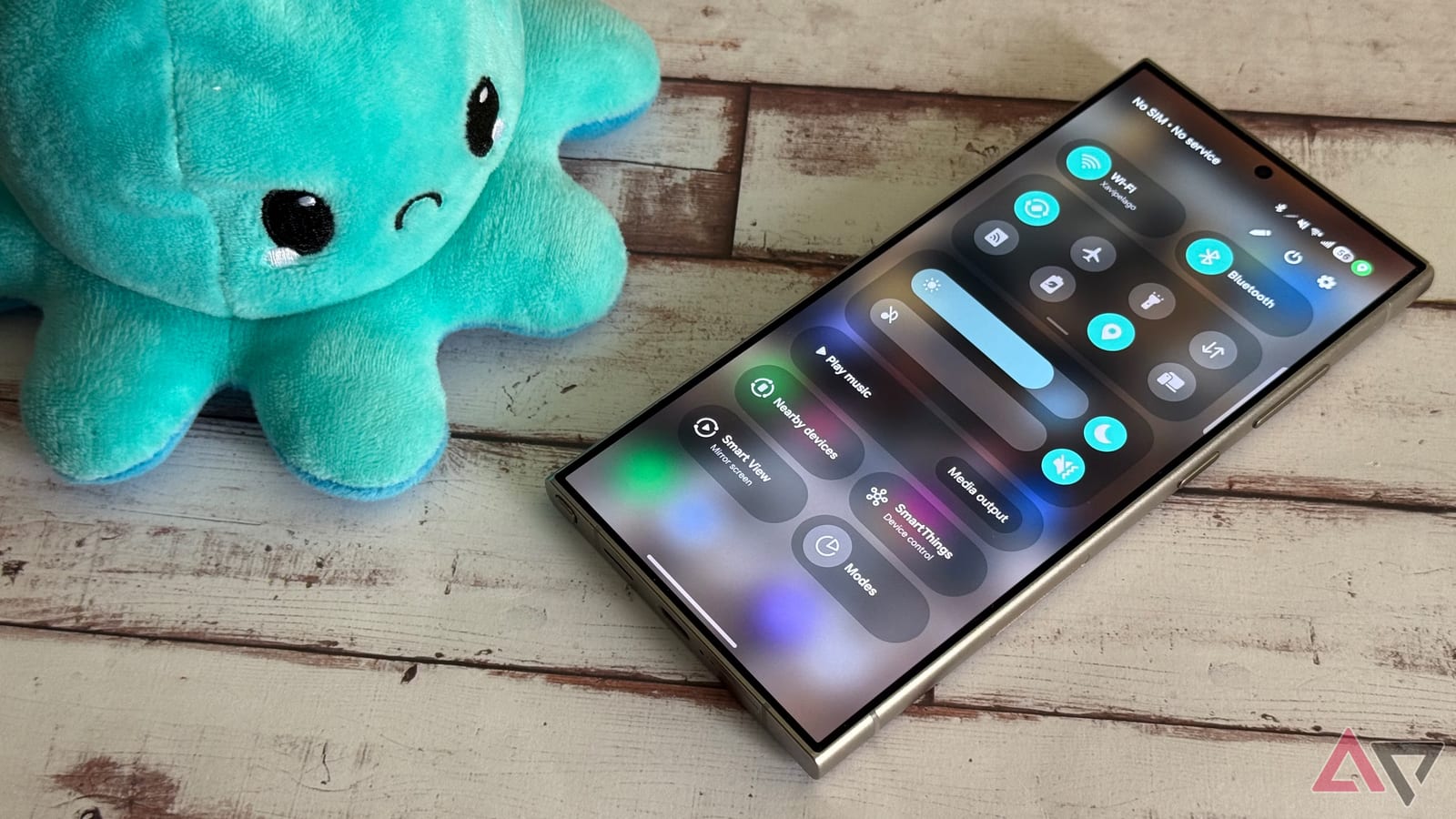
Samsung now separates the quick toggles, such as Wi-Fi and power saving, from the notification area, a move that follows Apple. To get the old one-swipe layout back, open the Quick Settings menu, tap Panel settings and choose Together. Brightness then sits in the same menu.
The Now Bar, Samsung's live updates area on the lock screen, can fill up with random alerts. Go to Settings > Lock screen and AOD > Now bar. Under Live notifications, tap View more and switch off anything that is not vital. Turning off broad Google alerts left only useful ones, such as Samsung Health and Music.
Fix the side button and screenshots
Holding the side button has long opened Bixby, Samsung's assistant, instead of the power menu. Under Settings > Advanced features > Side button, the Press and hold section offers Wake Bixby or Power off menu. The second choice brings back shutdown, restart and emergency call.
For cleaner screenshots, open Settings > Advanced features > Screenshots and screen recordings and turn on the option to hide status and navigation bars. The clock, signal bars and notification icons then disappear from screenshots and screen recordings.
Two accounts, one phone
People who carry a personal and a work line can use Dual Messenger. Open Settings > Advanced features > Dual Messenger and switch on WhatsApp. The phone creates a second, fully separate copy of the app, so there is no need to juggle Business and Personal versions.
Keep it running smoothly
The writer also uses a scheduled restart to keep the phone feeling snappy. Go to Settings > Device care > Auto optimization and turn on Auto restart. The phone can decide when it needs a reboot, or you can set a schedule. It restarts only when certain conditions are met, so it should not cut off something important. The article does not spell those conditions out.
Quick reference
- Side button: Settings > Advanced features > Side button
- Screenshots: Settings > Advanced features > Screenshots and screen recordings
- Dual Messenger: Settings > Advanced features > Dual Messenger
- Auto restart: Settings > Device care > Auto optimization
The article does not say which Galaxy models have these options, and menu names may differ on your phone. The writer suggests trying the changes for a couple of weeks if the phone feels too noisy or a little slow.
The takeawayIf a Galaxy feels noisy or slow, spend a few minutes in Settings on the side button, lock screen alerts and Auto restart.