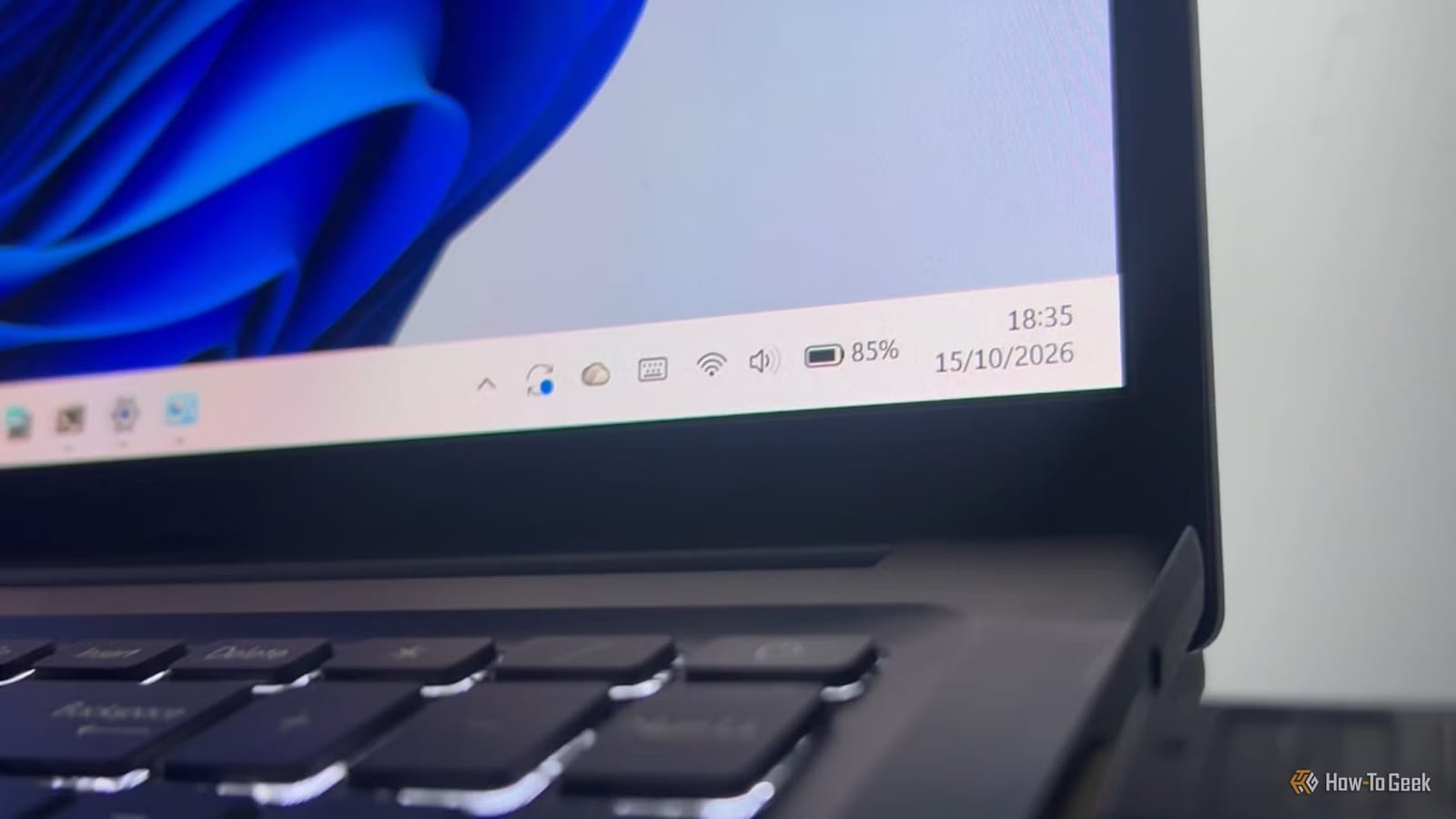
If your laptop is running on borrowed time, Windows 11 already has settings that can stretch the battery. A How-To Geek guide by Diana Todea collects them for moments when recharging is not an option. The simplest one is switching the power mode to "Best power efficiency." Other tweaks go further, but each one costs some performance.
Start with the power settings
Open Settings, then System, then Power and battery. Two sections matter here: Energy recommendations and Power mode. Energy recommendations can lower screen brightness, turn the screen off when idle, put the device to sleep and lower the refresh rate. Which options appear depends on your device and your latest Windows update. An "Apply all" button turns them all on at once.
Power mode has three choices: Best power efficiency, Balanced and Best performance. For the longest battery life while unplugged, pick Best power efficiency.
A bigger step is turning off CPU boost. This feature lets the processor run faster during demanding jobs such as gaming or video editing, and it uses more energy. Disabling it can cut battery drain significantly, but heavy tasks will run slower.
Adjust the screen
The guide suggests starting with brightness. Windows battery saving sets it to 30%, but the writer recommends going as low as is still comfortable for your eyes. The right level depends on your display and the lighting around you.
Next is refresh rate, which controls how smooth motion looks, such as scrolling and animations. Go to Settings, System, Display, Advanced display, then "Choose a refresh rate." Switching from 144 Hz to 60 Hz can save some battery, though the effect varies with your display and how you use the PC. If your laptop supports Dynamic refresh rate, Windows can adjust the rate for you.
- Turn off Animation and Transparency effects under Settings, Accessibility, Visual effects.
- Disable HDR, unless you edit photos or video.
- Use dark mode. It helps most on OLED screens and makes less difference on LCD.
Check which apps drain power
Go to Settings, System, Power & battery, then Battery usage to see which apps use the most power. From the ellipsis icon, choose "Manage background activity" and set an app to Power optimized, Always or Never. Power optimized is the safest choice in most cases.
Reserve "Never" for apps that do not need to sync or send real-time alerts, like single-player games or utility tools. Keep background access on for messaging and email apps. Note that the apps at the top of the list are often just the ones used most, so a high number does not always mean a problem.
Browsers often have their own Energy Saver mode, so check their settings. Task Manager also lets you turn off startup apps you do not need, which cuts background activity from the moment the computer starts.
What you give up
The guide is upfront about trade-offs. Not every tip helps every laptop equally, and some slow things down. Lower brightness and refresh rates can make the screen look less vivid and smooth, and turning off visual effects changes how Windows looks. If the full setup feels like too much, the guide suggests changing only what still lets you work comfortably.
The takeawaySet Windows 11 to Best power efficiency, lower screen brightness, and check Battery usage for apps that drain power.