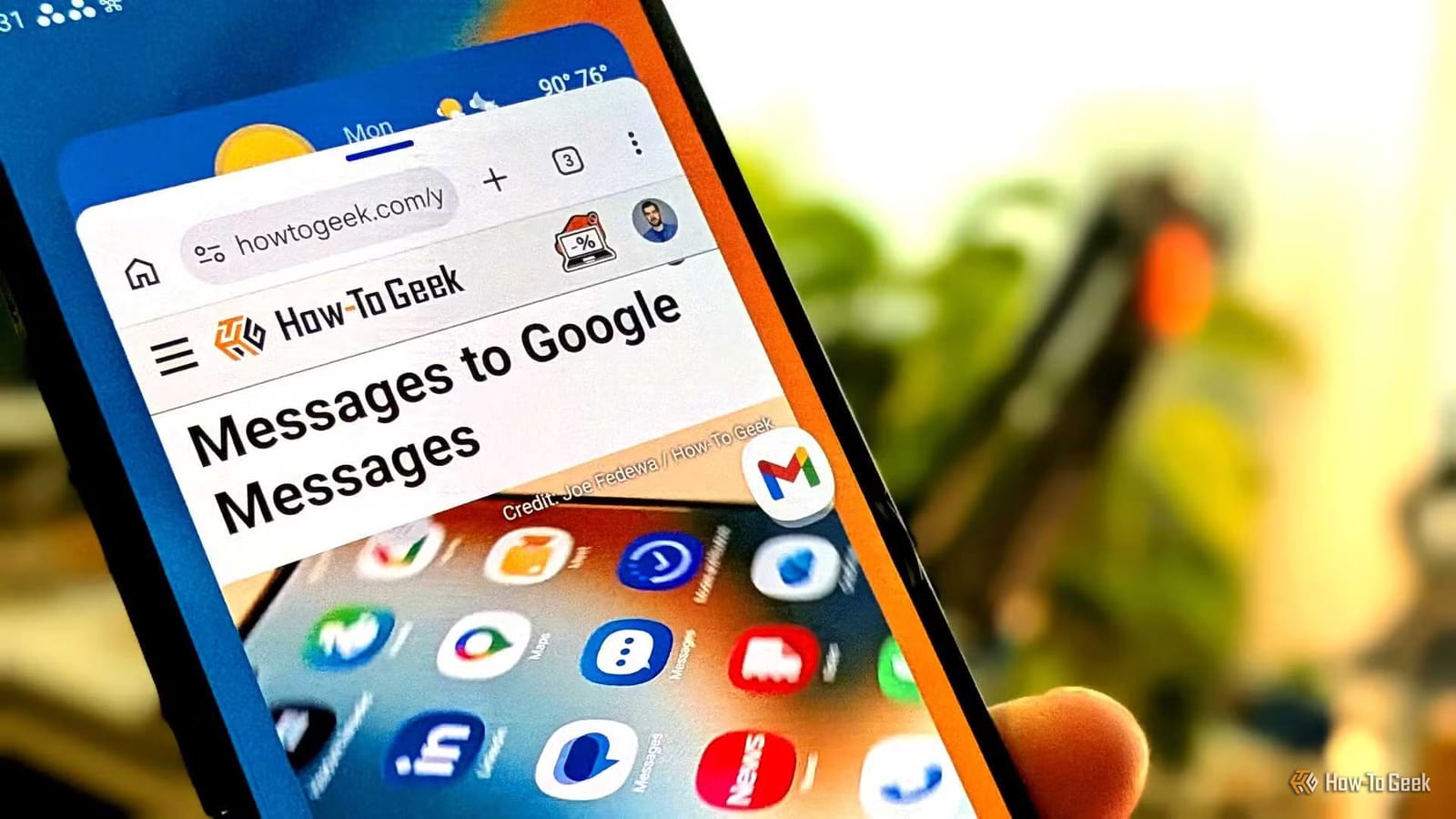
Samsung Galaxy phones have a quick way to shrink an app into a small floating window, and it is switched off by default. Turning it on takes one toggle in Settings. After that, a diagonal swipe from a top corner of the screen does the job. It is handy for anyone who keeps leaving an app to check a calculator or jot a note.
What the feature does
Android phones all come with some form of multitasking. The basic version is split screen, where one app fills the top half and another fills the bottom. Many apps feel cramped at that size. A floating pop-up window is different. It sits on top of the app behind it and is easy to move around. Samsung's version is flexible, and nearly all Android apps can be resized to the shape you want.
How to turn it on
No extra app is needed. Samsung's Good Lock customization app is not required. Follow these steps:
- Open Settings, then Advanced Features, then Multi Window.
- Tap the toggle next to "Swipe for pop-up view."
- Swipe diagonally from either top corner of the screen.
The app you are using shrinks into a floating window, much like a window on a laptop or desktop computer.
Controls and tucking windows away
A horizontal bar at the top of the window opens window controls when tapped. From there you can minimize the app into a floating icon, switch to split screen, return to full screen, or close the app. You can also set these controls to always show.
Pop-up windows block the app behind them, so having more than one open is not ideal. Samsung offers a fix. Drag a window by its top edge to the side of the screen and it shrinks to a thin sliver. Tap that sliver and the window returns to its earlier size. No extra setting is needed.
How it compares
The writer at How-To Geek notes that the side-tucking behavior is exclusive to Samsung. Google and Motorola phones let you shrink floating windows into floating app icons, similar to Samsung's minimize button. The writer finds Samsung's side approach less disruptive.
Who gets the most from it
The article points to simple jobs, such as running a calculator or using a basic note-taking app while another app stays open. Bigger screens help more. The piece says a Galaxy S26 Ultra can only do so much at once, while the Galaxy Z Fold 8 and Z Fold 8 Ultra are a different story. Even on a book-style foldable, though, stacking several pop-ups is only a modest improvement.
The takeawayOn a Galaxy phone, turn on "Swipe for pop-up view" under Settings, Advanced Features, Multi Window, then swipe from a top corner.