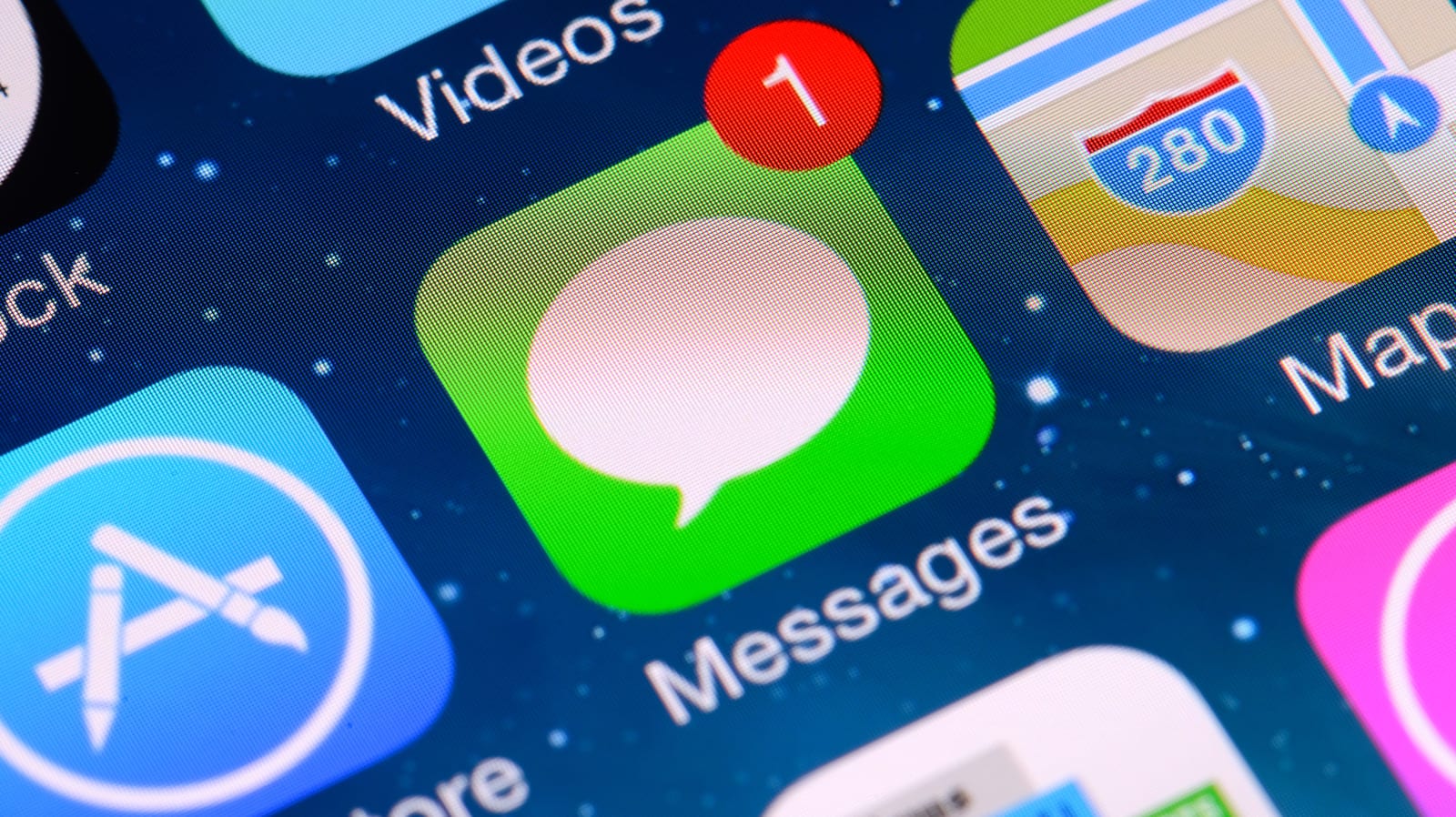
The apps menu inside iPhone Messages can be rearranged in a few taps. Engadget reports that many people never do it, so apps they never use sit at the top while their favorites stay buried at the bottom. The fix takes about a minute.
Why the menu feels cluttered
Apple has added apps to Messages over the years. Since iOS 18, several have come installed by default. Apple says iOS 27 includes 14. They cover things like sending your location, voice recordings, stickers, GIFs, music, photos and polls. Other apps, such as ESPN and Venmo, can add even more.
How to reorder the apps
- Update to the latest iOS, then open Messages and tap a conversation.
- Tap the Plus (+) button beside your message to see your apps.
- Hold the app you want to move until its icon shrinks.
- Drag it to the spot you want and let go.
Adding, hiding and removing apps
To add an app, open a conversation, tap Plus, then tap the blue App Store icon. Tap Get to download. If the app costs money, you will see a price instead. To leave the store, swipe down or tap Close (X).
To switch an app off in Messages, go to Settings, then Apps, then Messages, then iMessage Apps. Each app has a toggle. To delete one entirely, press and hold its icon on your home screen and tap the red Remove App option. You can also change how the audio recording app works in Messages, switching between voice note and dictation.
What to watch for
Be choosy about what you add. In August 2026, OpenAI added iMessage integration to its ChatGPT app for Mac. Some people found it useful. Others raised privacy and security concerns. Some free apps also ask for in-app purchases, which can add up on your monthly bill.
Families can use the Ask To Buy feature in Family Sharing. It requires children on the plan to get approval before making an in-app purchase.
The takeawayHold and drag apps in the Messages Plus menu to reorder them, and think twice about privacy and in-app charges before adding new ones.