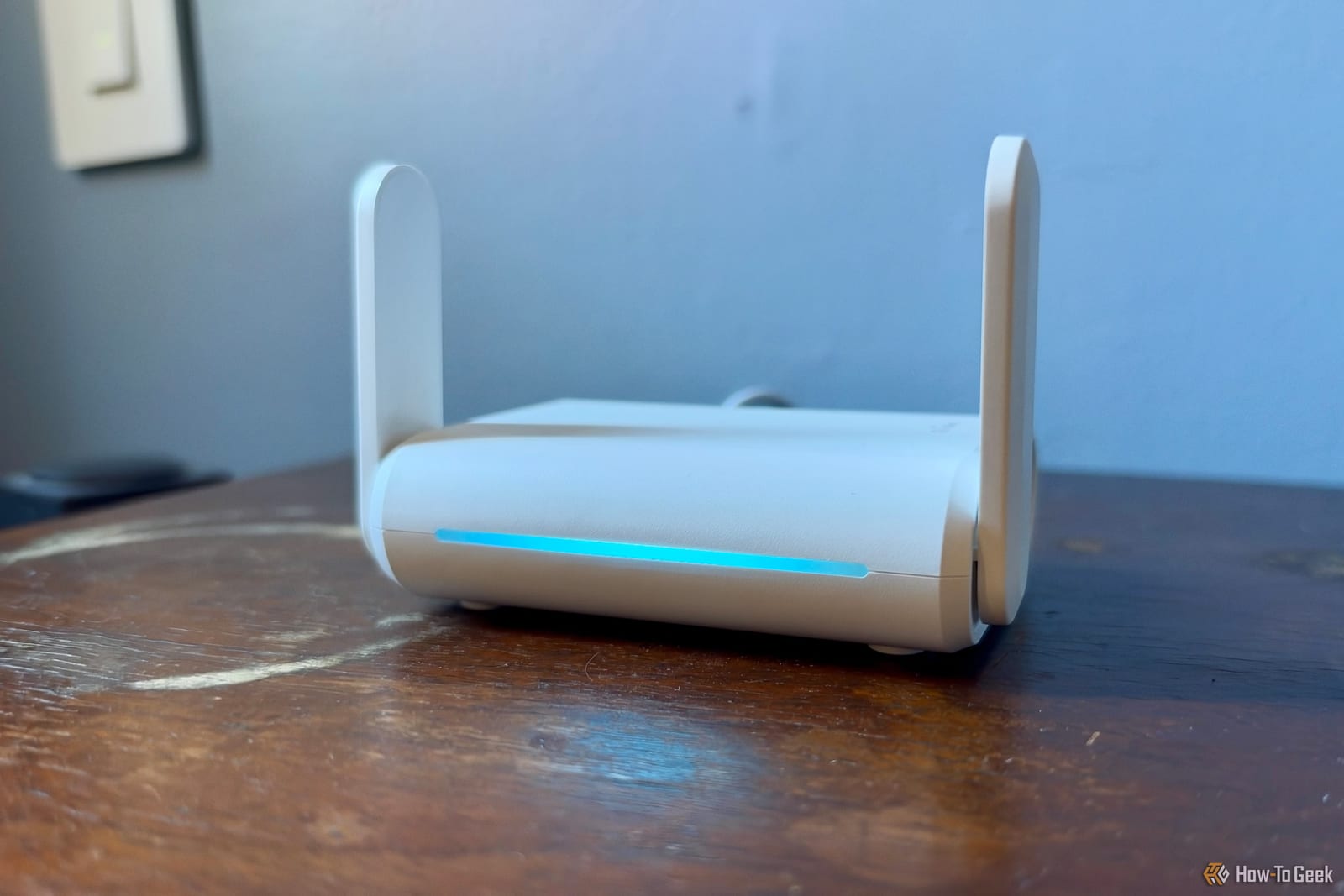
If your Wi-Fi drops for no clear reason, radar could be the cause. Some of the airwaves your router uses are shared with radar systems, including military, aviation and weather radar. When a router senses radar, it has to move off that channel fast, and devices can lose their connection for a moment.
Why this happens
Routers can use extra 5GHz channels, such as 52-64 and 100-140, through a feature called Dynamic Frequency Selection, or DFS. These channels tend to be less crowded, which helps performance. The trade-off is that radar gets priority.
Under US rules, a router that detects radar on a DFS channel has 10 seconds to stop transmitting there. It then cannot use that channel for at least 30 minutes.
What you might notice
The router should switch to another channel, so Wi-Fi does not vanish completely. But devices on the 5GHz band may drop briefly. Casual streaming will likely survive that. A work call or an online game may not.
If the router picks another DFS channel, it may need one to ten minutes to check for radar first, depending on the channel and local rules. Your 5GHz network could be unavailable in that time. The 2.4GHz network should still work, though that is where smart home devices often sit.
How to check
- Log into your router's admin panel and open the 5GHz wireless settings.
- See whether you use a DFS channel, such as 52, 100 or 116.
- Search the system logs for "DFS," "radar detected" or unexpected channel changes.
Not every channel change means radar was involved. False alarms happen, and not every router shows logs.
How to avoid it
Look for an option to turn off automatic DFS channel selection, or pick a non-DFS channel yourself, such as 36, 40, 44 or 48. These are generally safe from radar-related interruptions. Switching from 160MHz to 80MHz channel width can also help, since very wide channels can overlap DFS frequencies even when your main channel is not one.
The catch is that non-DFS channels tend to be more crowded, so speeds may suffer in busy buildings.
The takeawayIf calls or games drop for no clear reason, check your router's 5GHz channel and logs, and try a non-DFS channel like 36, 40, 44 or 48.