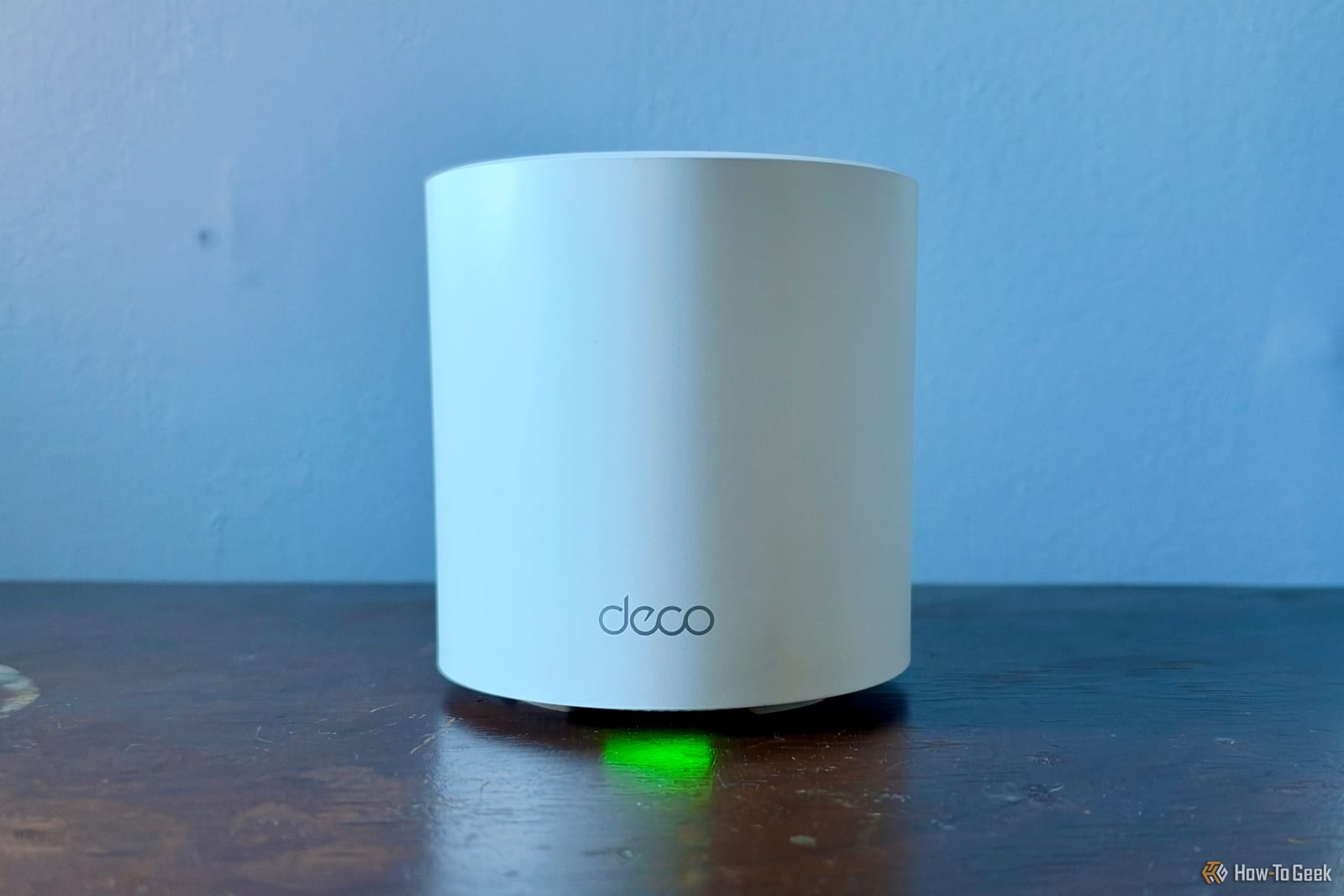
Most home routers keep a list of every device on your Wi-Fi, and many can show which ones are sending out the most data. A new How-To Geek guide by Monica J. White walks through how to find that information. It takes a few minutes and requires no special skills.
Start with the device list
Log into your router's admin panel by typing an address like 192.168.1.1 or 192.168.0.1 into your browser. You can also use the router's companion app. Look for a section called Connected Devices, Clients, Device List or Network Map.
You should see the usual items: computers, phones, TVs and game consoles, plus any smart home gadgets on the same network. Depending on the router, the list may include each device's local IP address, MAC address (a hardware ID) and sometimes the maker.
An unfamiliar entry is not a reason to panic. Randomized MAC addresses and generic device names can make ordinary devices look suspicious.
Check who uploads the most
Many modern routers have built-in traffic monitoring, though how much it shows depends on the model. Look for Traffic Analyzer, Bandwidth Monitor or Traffic Usage. The key number is upload traffic. Compare devices while they are in use and while they should be mostly idle.
Pay attention to the units. Live speeds in Mbps and total data in MB or GB tell you different things.
See where the data goes
Some advanced routers and security gateways also show traffic logs with destination addresses, domains and application categories. The guide gives UniFi gateways as an example, with a Traffic Flows feature under Insights > Flows.
If you see a connection you are sure you do not recognize, you can look up the address or domain to find the service behind it. A log shows who and when, but not what was sent.
If your router is basic
Routers rented from an internet provider, or simpler models, may not offer any of this detail. On Windows, there are other options:
- Press Win + R, type resmon, and open the Network tab in Resource Monitor.
- Under Processes with Network Activity, sort by Send (B/sec) to see which apps are uploading.
- Use Microsoft's free TCPView to see which remote addresses those apps connect to.
- For network-wide monitoring, set up Pi-hole.
Keep it in perspective
The guide does not suggest unplugging everything. Plenty of normal activity involves uploading. Cloud backups and security cameras, for example, can produce a lot of legitimate traffic that looks suspicious at a glance. The goal is to know what is on your network and spot anything that does not fit.
The takeawayLog into your router, check the device list and upload traffic, and look into anything you do not recognize before assuming the worst.