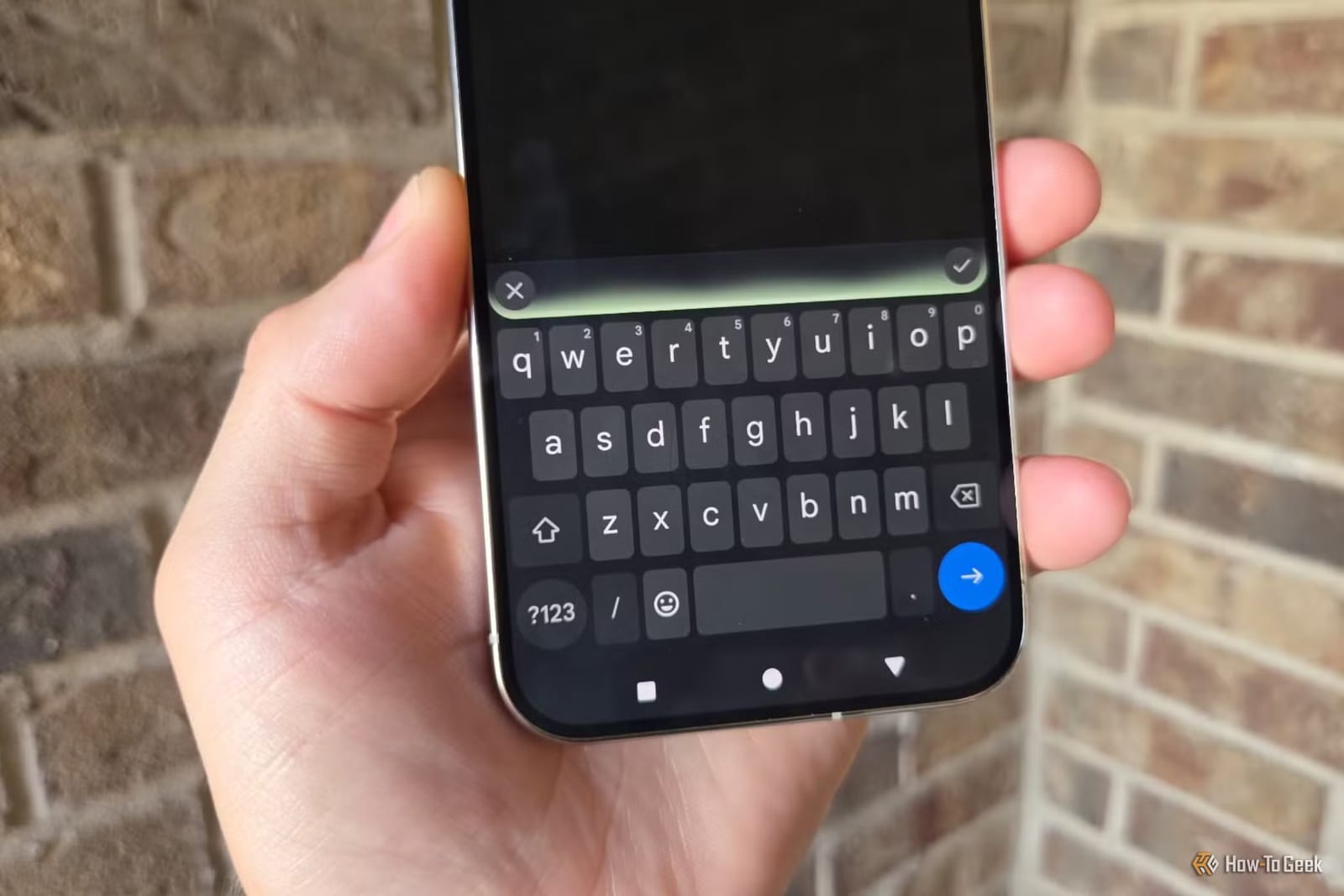
Most Android users type on Google's Gboard keyboard without knowing it hides several time-saving gestures. A How-To Geek guide by Steve Larner walks through six. The most useful ones make fixing mistakes quicker, with less tapping and fewer accidental deletions. Several only need a settings change to switch on.
Delete words by sliding
Holding the Delete key in Gboard removes one character at a time. Glide delete works differently. Turn it on in Gboard settings under Glide typing. Then touch Delete and slide left. Gboard highlights text word by word, and the farther you slide, the more words it picks. Slide right to undo. When you lift your finger, everything highlighted is deleted. It works on Samsung phones that use Gboard too.
Move the cursor with the spacebar
Tapping to land the cursor in exactly the right spot is fiddly. Instead, press and hold the right side of the spacebar and swipe left to move backward, or right to move forward. Starting on the right gives you more room to slide. Once the cursor is moving, sliding over nearby keys will not trigger swipe typing. A faster swipe jumps farther. A slower one gives fine control.
Type symbols with a flick
Many keys carry a small secondary character, such as a dash on the F key or a dollar sign on the D key. You can press and hold a key to see its options, or flick down on it to type the symbol right away. Both need switching on in Gboard Settings, under Preferences.
- Touch & hold keys for symbols: shows more secondary characters on the keys
- Flick keys to enter symbols: lets you swipe down on a key to type its symbol
- Flick input sensitivity: a slider in the same menu if flicking feels off
Flick straight down and stay on the key. If your finger slides onto a neighboring key, Gboard treats it as swipe typing instead.
Floating keyboard and what you need
The guide also covers a floating option that lets you move the keyboard anywhere on the screen, so it does not block what you need to see. It is similar to the one-handed layout. The guide points to the four-square or G icon on the keyboard as the starting point. The text provided cuts off before the full steps.
The gestures should work on Android 7.0 (Nougat) or higher with Gboard version 9.0 or above. Some phone makers turn certain features on by default. Others need to be switched on by hand.
The takeawayOpen Gboard settings and switch on Glide delete and the symbol options, then try the spacebar cursor trick the next time you fix a typo.