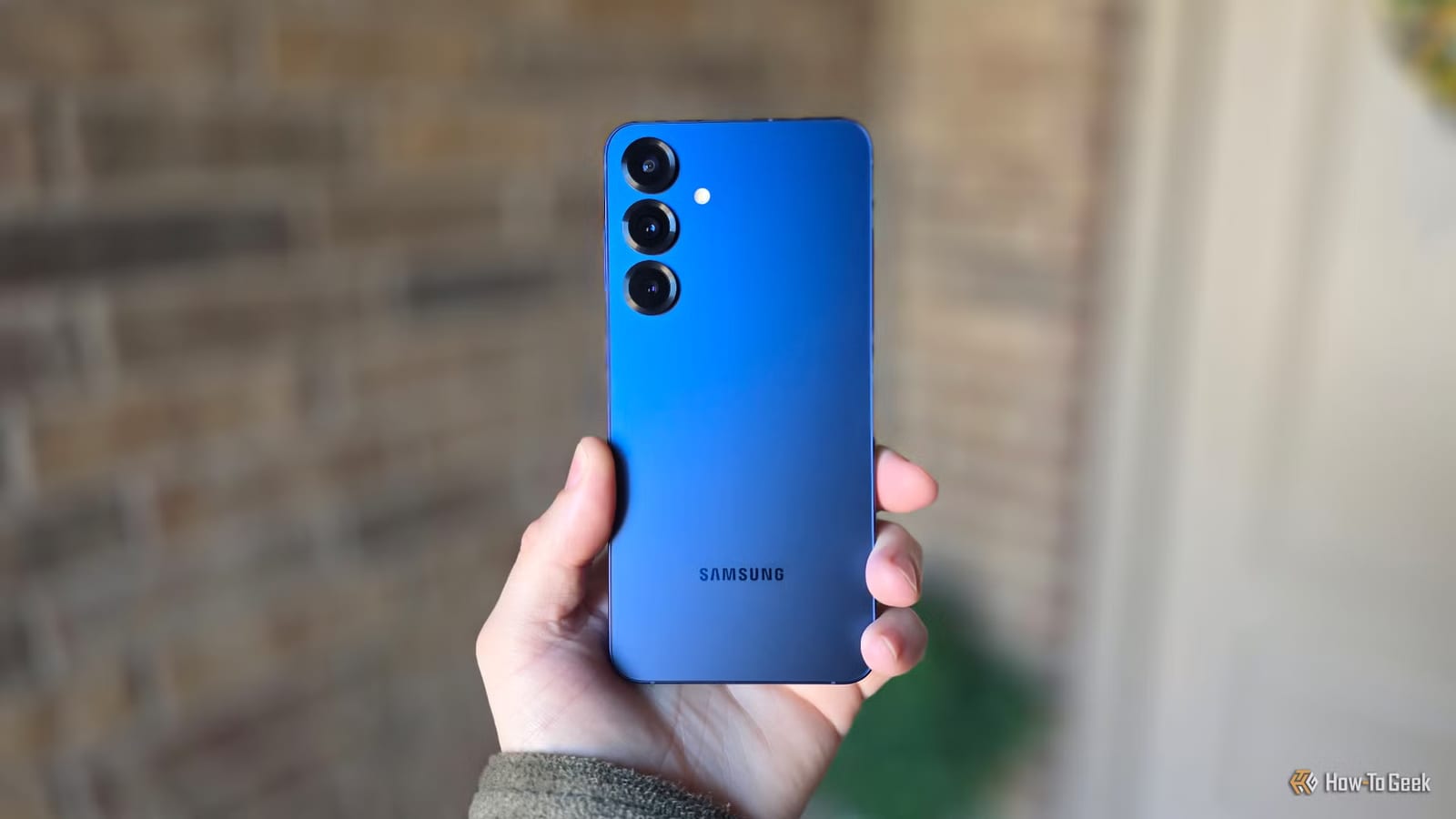
Four small settings on Samsung Galaxy phones can save you taps, protect your privacy and keep you from oversleeping, according to How-To Geek. They are easy to miss, and most take seconds to turn on. All four are part of One UI, the software Samsung puts on its Galaxy phones.
Hide a photo on an album cover
Each album in the Gallery app shows its most recent image as the cover. That can be awkward if the last image is a screenshot of a gift or a personal photo and you are showing someone else your phone. Long-press the album, tap the three-dot More button near the bottom right, and choose Change cover image. Pick a photo and tap Apply.
Skip an alarm, then bring it back
Say you have an alarm set for 6:30 every morning and you skip it for one day. A small pop-up appears asking if you want to turn it back on for tomorrow. One tap restores it. That helps avoid the classic mistake of forgetting to re-enable the alarm and waking up late.
Silence the phone with a gesture
Mute with gestures lets you silence an incoming call or an alarm by placing your hand over the screen or turning the phone face down. It is handy when you do not want to hunt for a button. To turn it on, go to Settings, then Advanced features, then Motions and gestures, then Mute with gestures.
That menu holds other gesture controls too, and the writer suggests trying them again if you gave up on them years ago. With a Galaxy Watch, you can also set a wrist shake to reject a call.
Open two apps with one tap
App Pair opens two apps together in split-screen, where each takes half the display. It suits combinations you use often, such as YouTube and a browser, or Gmail and your calendar. Some Galaxy Z foldables can even handle three apps.
- Open two apps in split-screen or multi-window view.
- Select the small divider between them.
- Tap the star icon.
- Save the pair to your home screen, Edge Panel or, on a Galaxy Z Fold, the taskbar.
Other settings worth a look
The writer also points to Modes and Routines, separate app sounds and One-Hand Operation+ as useful extras. One changed setting also helped with notification overload, though the article does not say which one in this piece.
The takeawaySpend a few minutes in Gallery, Clock and Settings on a Galaxy phone to turn on covers, alarm skips, mute gestures and App Pair.