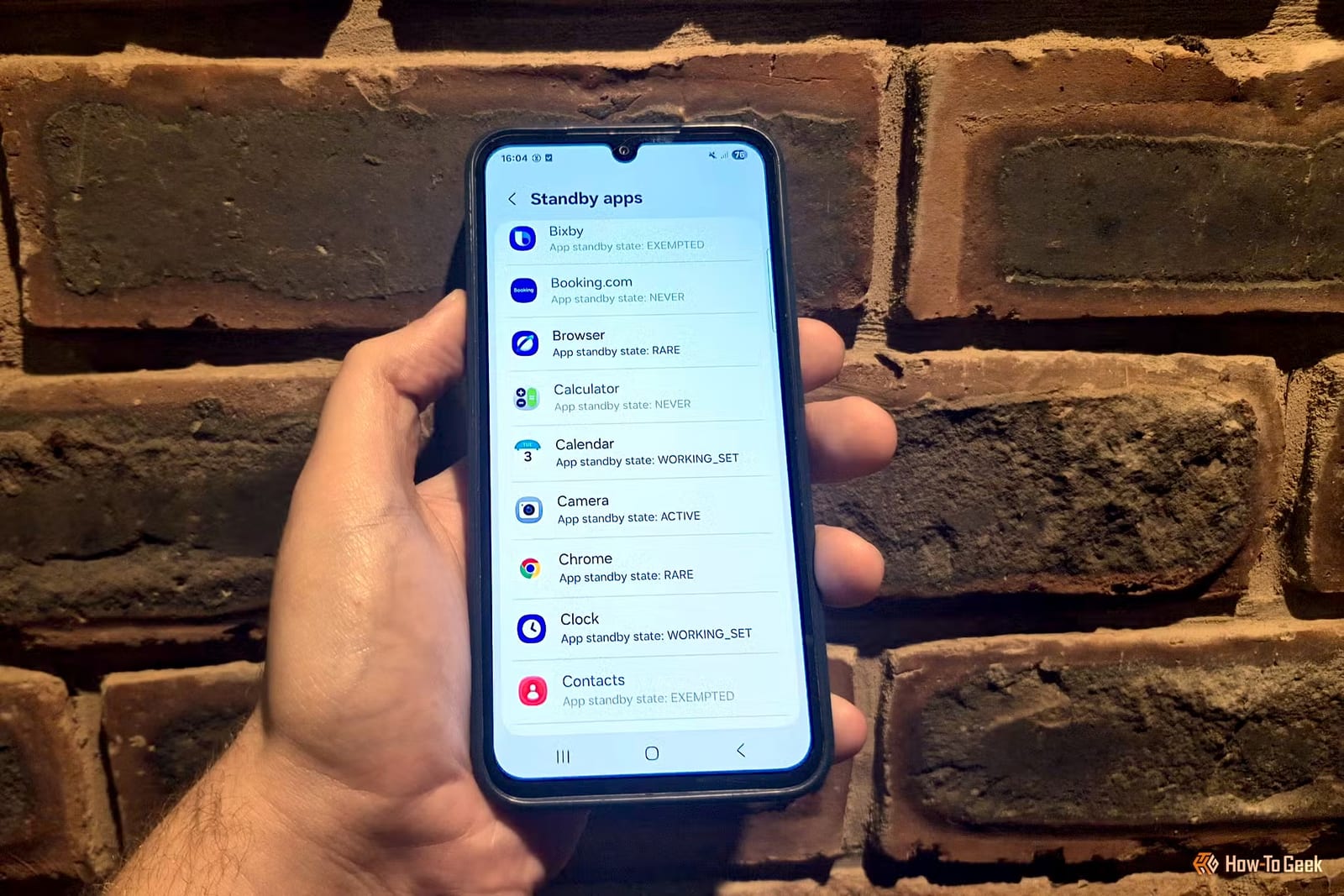
Android decides how much battery each of your apps can use in the background, and it does not always get it right. A feature called App Standby Buckets sorts apps into tiers based on how often you open them. A hidden menu lets you override those choices, which can help if your battery dies early or your email alerts show up late.
What Android is doing
App Standby Buckets arrived with Android 9. It watches how often you use each app, puts it in a tier, and limits what the app can do in the background to save power. It is one of several automatic features Android uses to tune the phone without your input. The catch is that these systems do not always work as intended.
Why it can backfire
Android can guess wrong in two ways. An app you hardly use may land in a high tier and keep draining the battery without you noticing. Or an app you rarely open but depend on for alerts may land in a low tier. The writer says this happens with his email app, where notifications can arrive late.
How to change it
The setting sits inside Developer options, which are switched off by default. Exact steps vary by phone, so a quick search for your model helps.
- Open Settings, scroll down and tap About phone or About device.
- On a Samsung, open Software information. Other phones may show OS Version or Version number.
- Tap Build number seven times. The phone asks for your PIN, then turns on developer mode.
- Find Developer options. On Samsung it is at the bottom of Settings. Others put it under System or Additional settings.
- Tap Standby apps to see every app and its current tier.
Tap an app to move it. The five tiers, from highest to lowest priority, are ACTIVE, WORKING_SET, FREQUENT, RARE and RESTRICTED. A sixth tier, NEVER, covers apps that were installed and essentially never opened. Those are put into deep sleep and use no resources.
What to avoid
If a rarely used app sits in a high tier and drains power, move it down. If a key app is stuck low and delays alerts, move it up. Do not push apps you open often into a low tier. According to the article, that backfires, because the app then uses more resources each time you open it.
The author, Tyler Dupont of How-To Geek, says the change helped cut background battery use on his Samsung, so it lasts a little longer. The article does not give figures, and results will vary by phone and by app.
The takeawayIf battery drains fast or alerts come late, check Standby apps in Developer options and move a few apps up or down.